
How to schedule a program
ROM programs guide you step-by-step to rebuild strength, improve mobility and control, and help you eliminate pain at the root.
Here's how to find the right program and get started.
1. Find the programs area
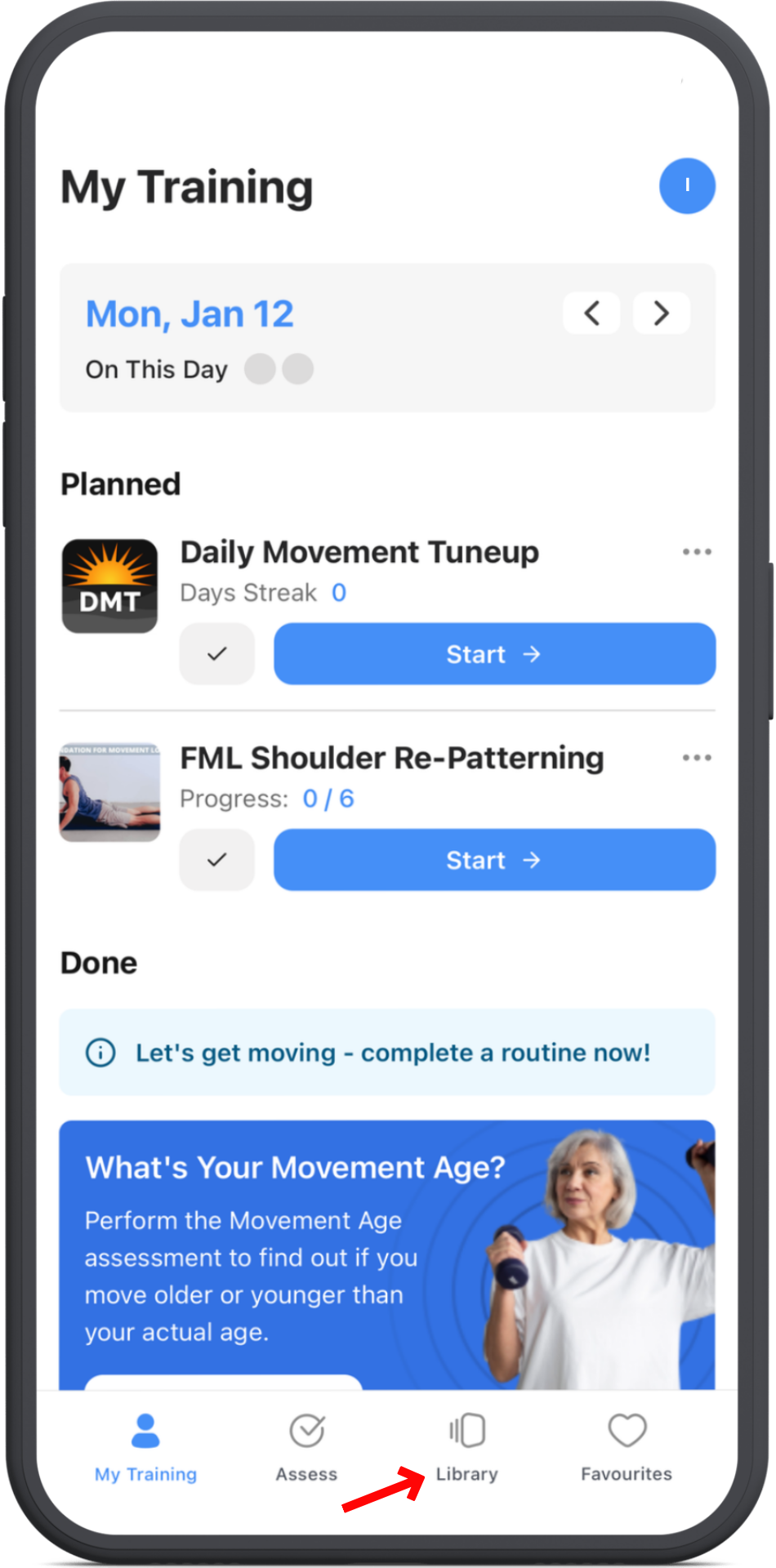
Open the ROM Coach app and log in. Tap on the Library tab at the bottom.
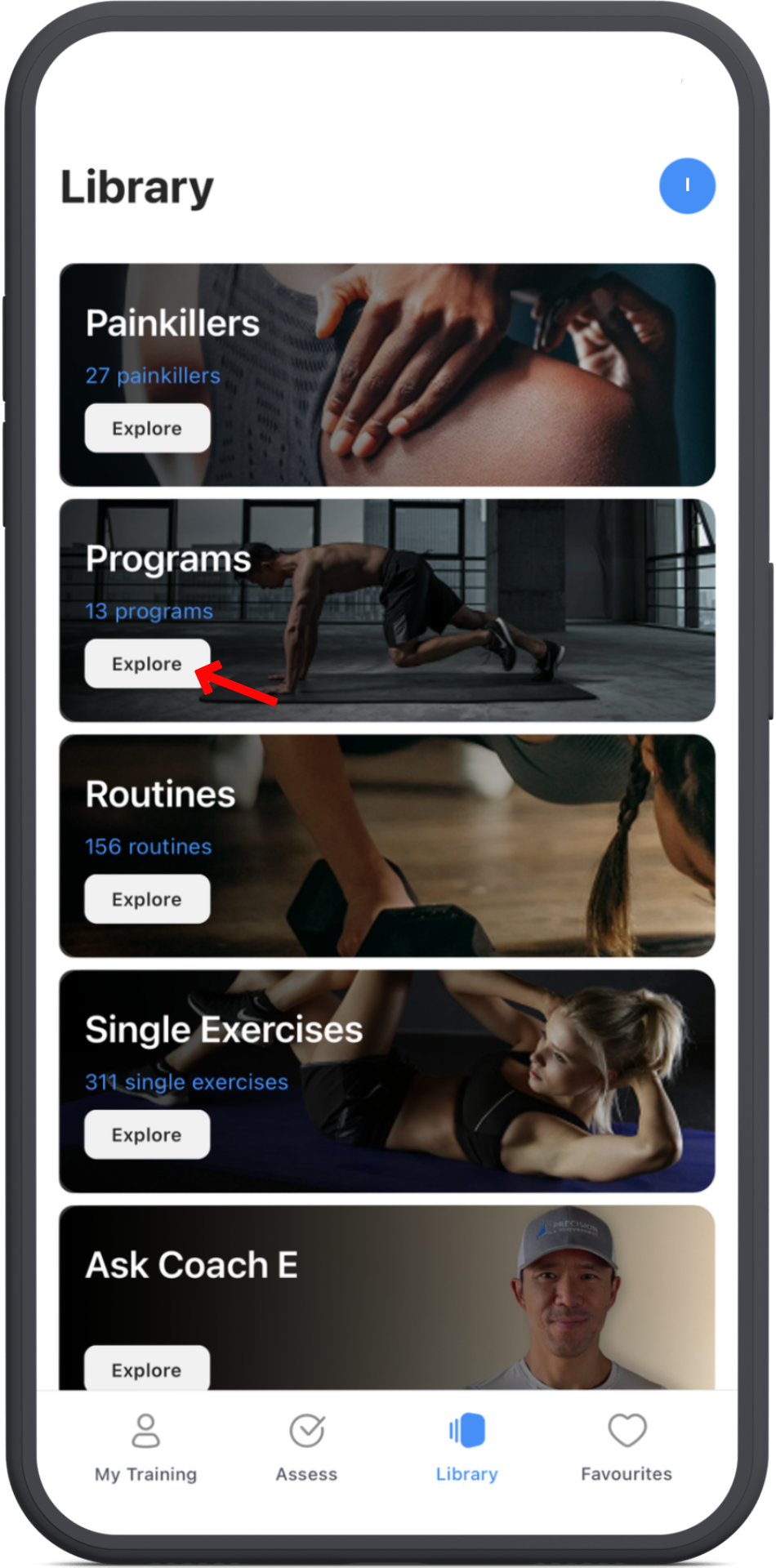
In the Programs section, tap Explore. On the next screen, you'll see all the programs currently available in the ROM Coach app.
2. Browse the desired program
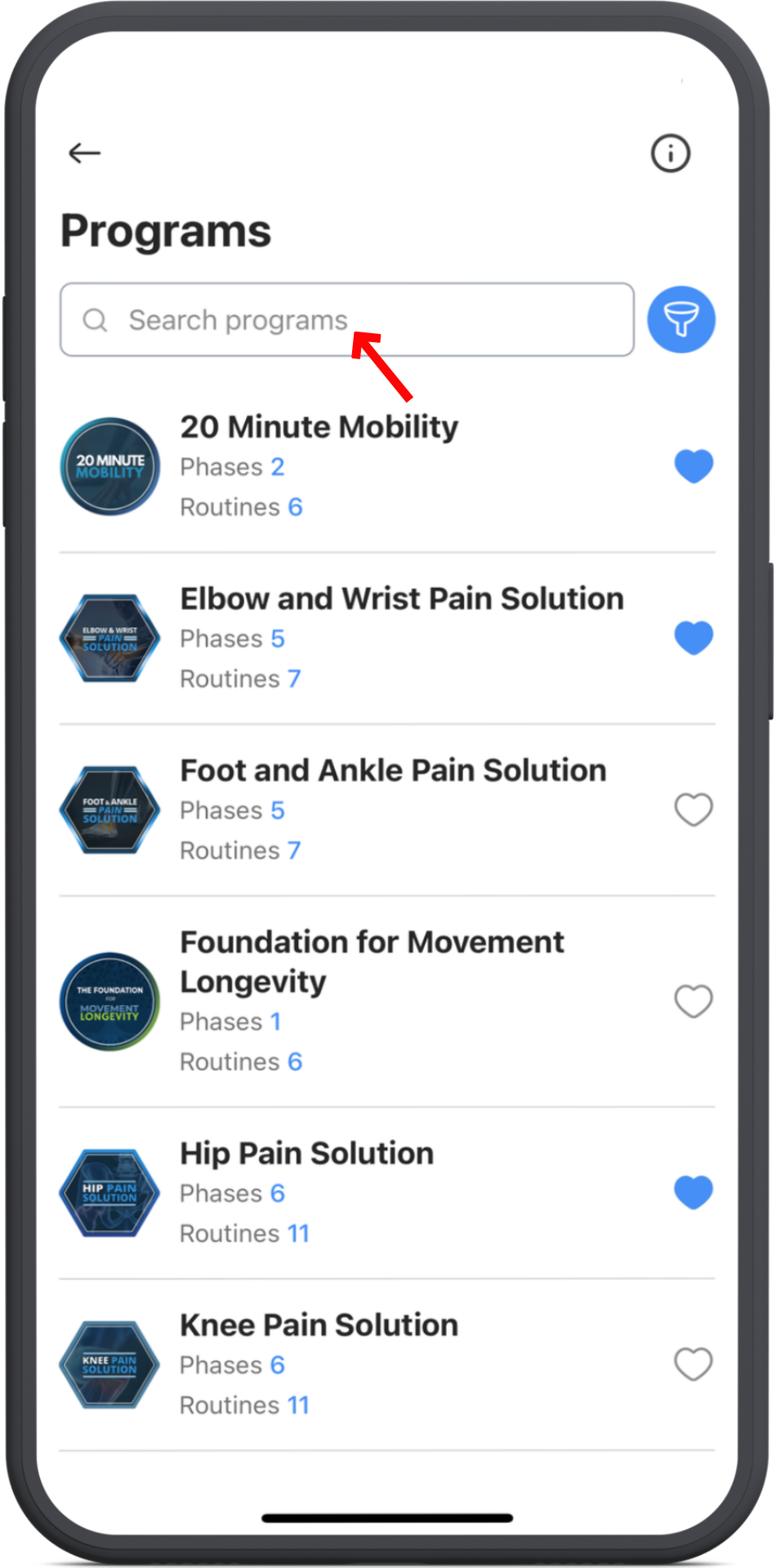
Scroll to browse, or tap the search bar at the top to search by name.
3. Filter the program
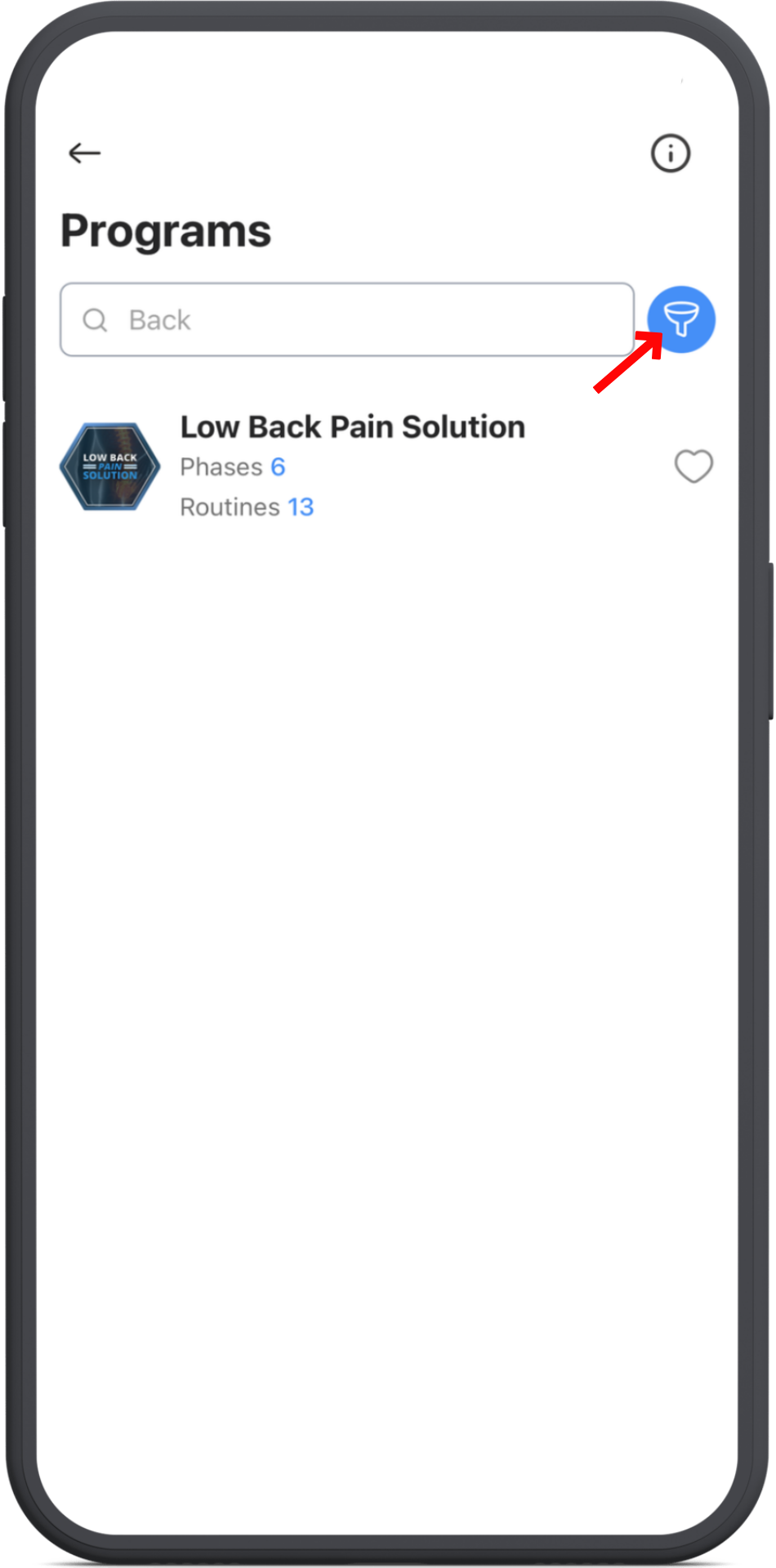
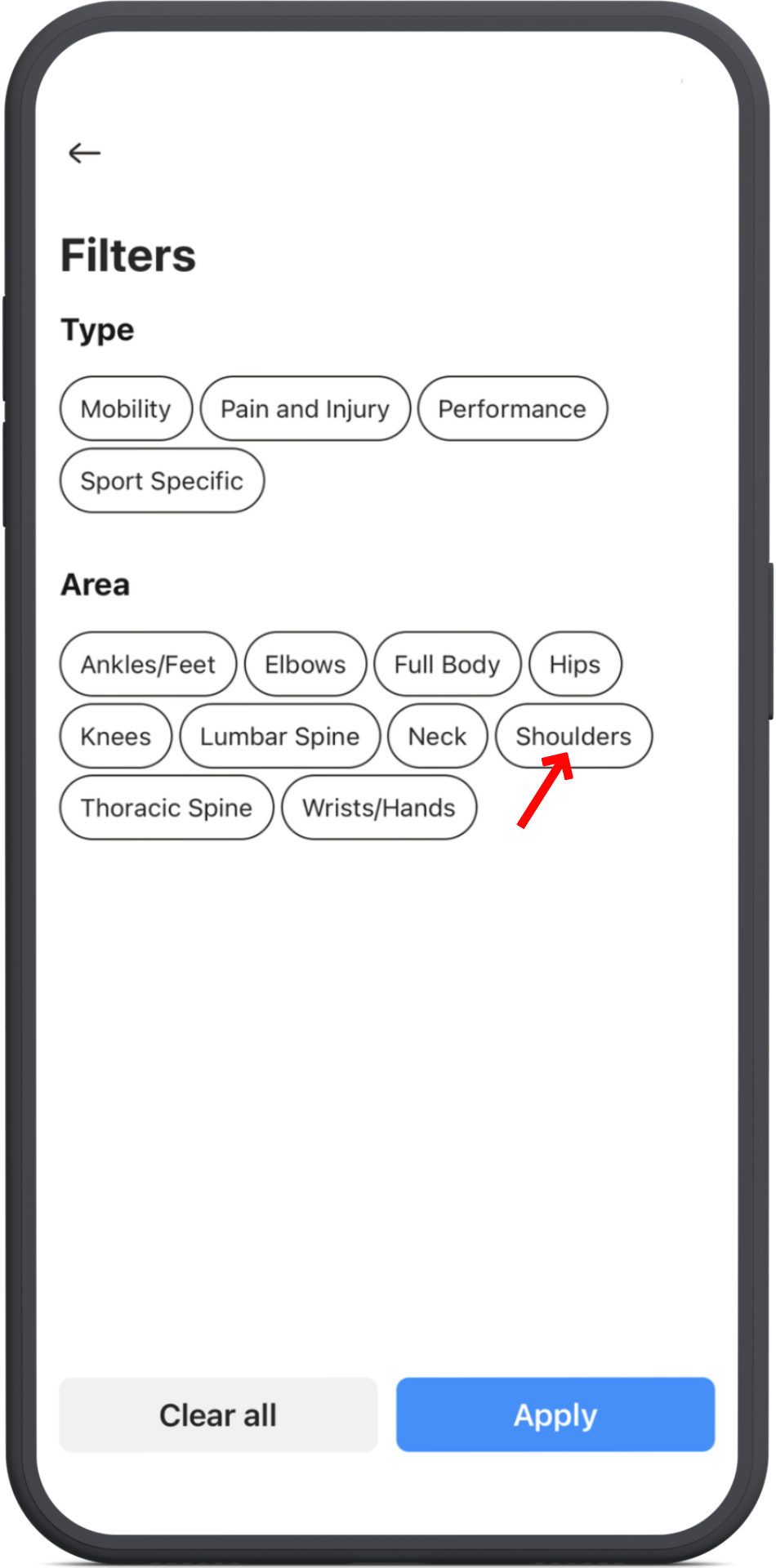
You can also tap the blue funnel icon next to the search bar to filter by program type or body area.
When you’re done, tap Apply.
4. Add program to your schedule
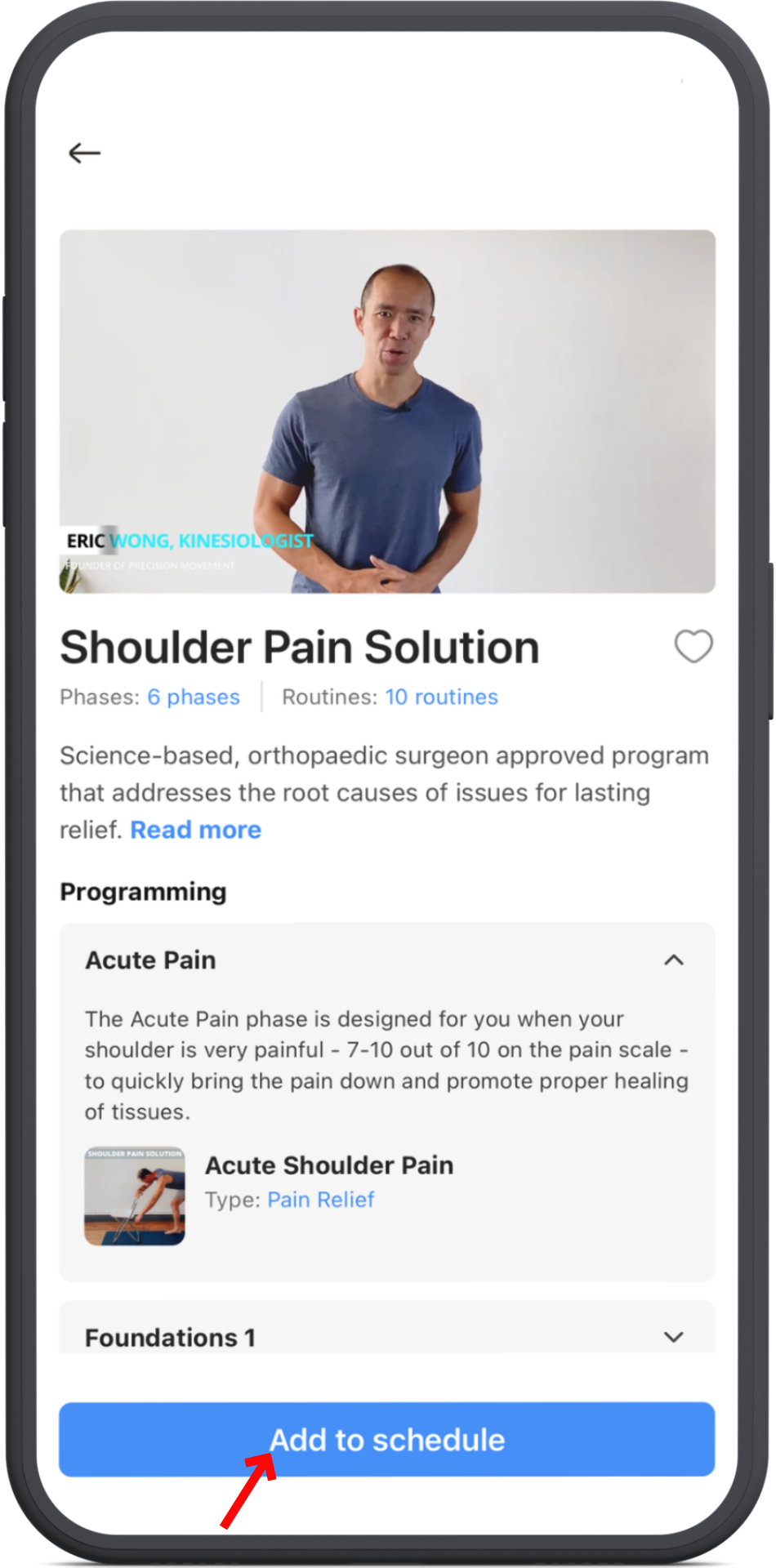
Tap any program to view its details, including the intro video, description, timing, and phase information.
When you’re ready, tap Add to Schedule at the bottom.
5. Finish scheduling the program
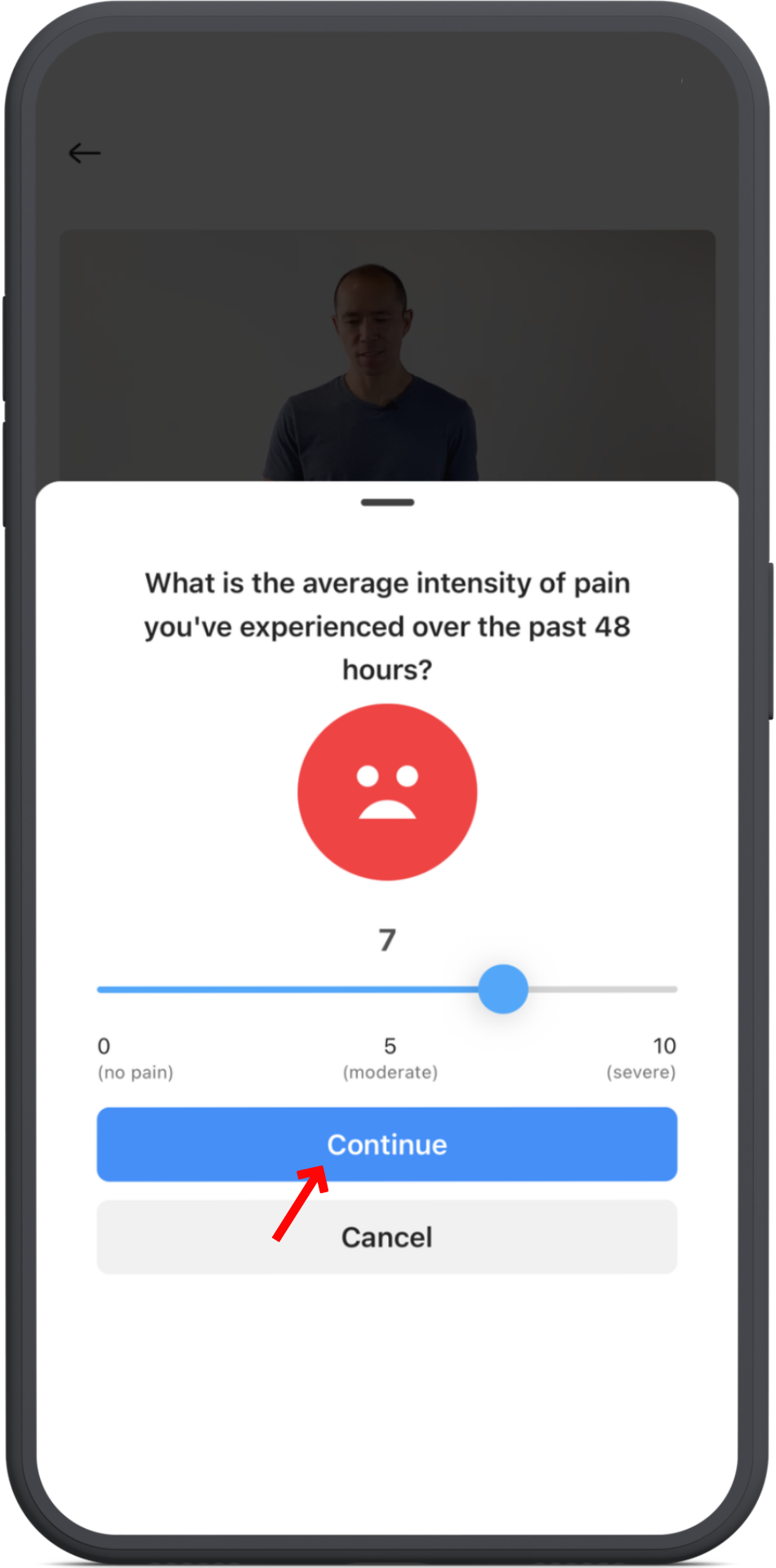
Answer a few quick questions so the app can determine the best starting phase for you, then tap Continue to move to the scheduling screen.
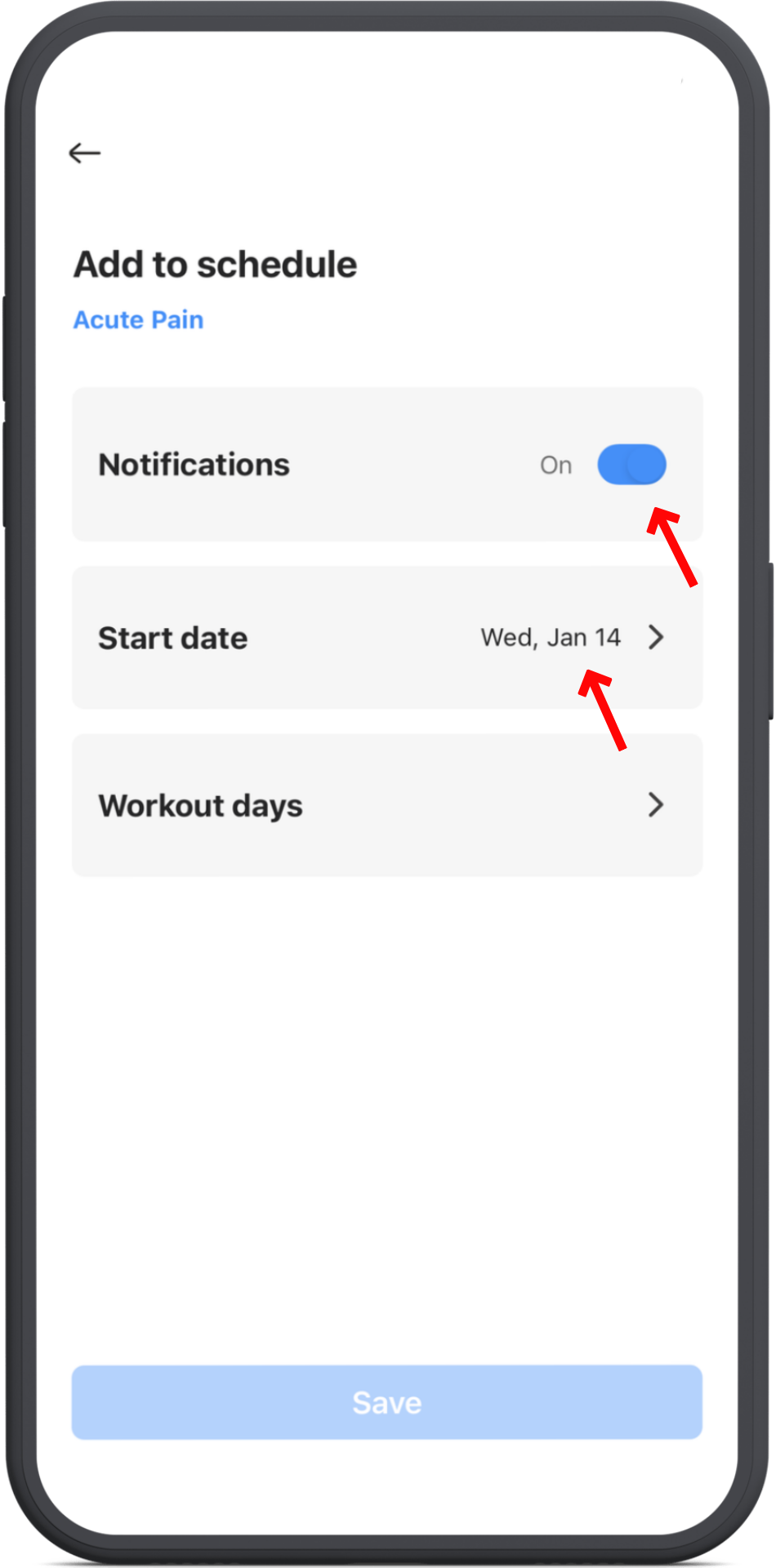
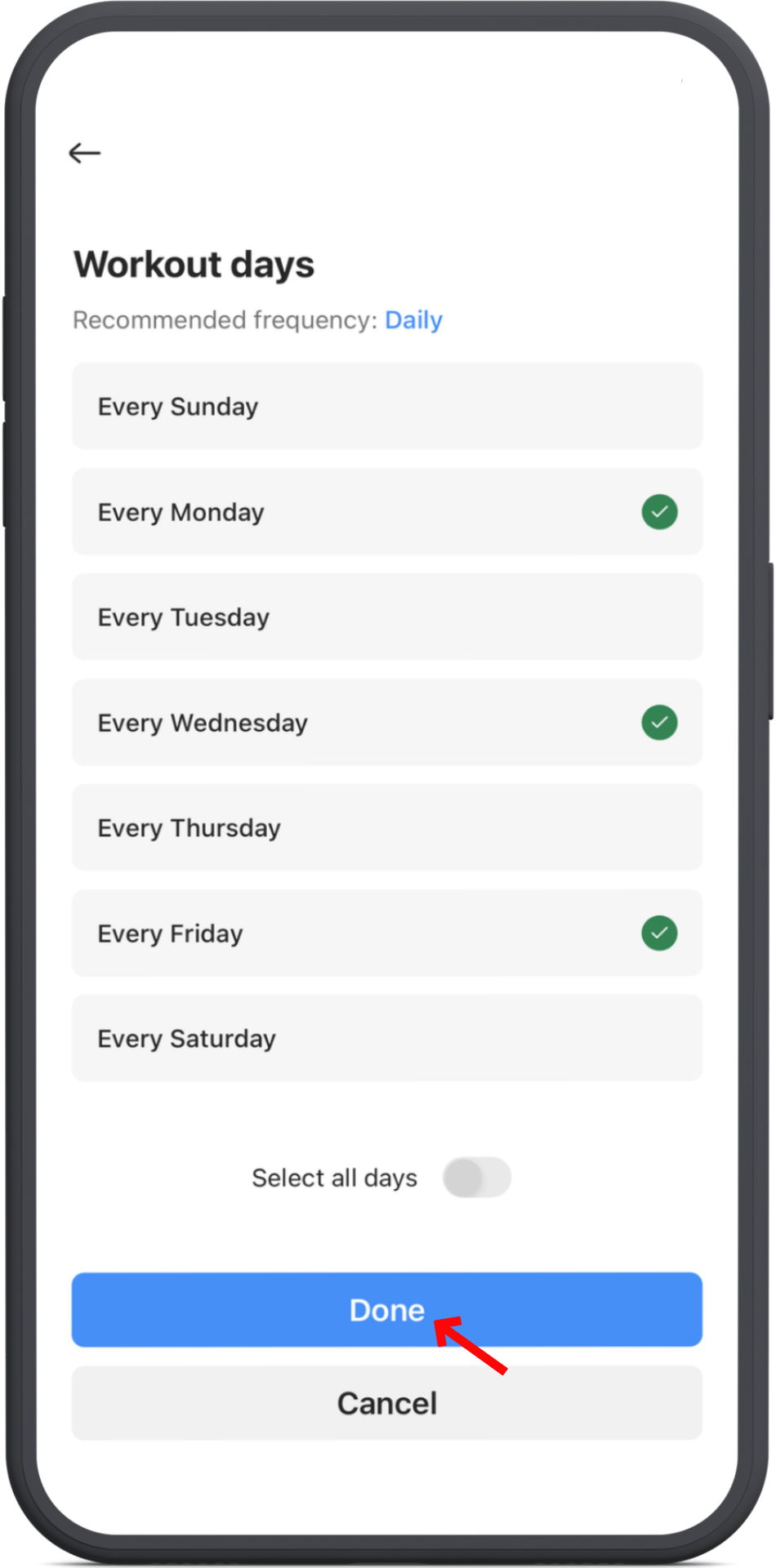
Choose your notification preference, start date, and workout days for the program.
Once all three are set, tap Save at the bottom.
That’s it—your program is now scheduled.
6. Start the routine
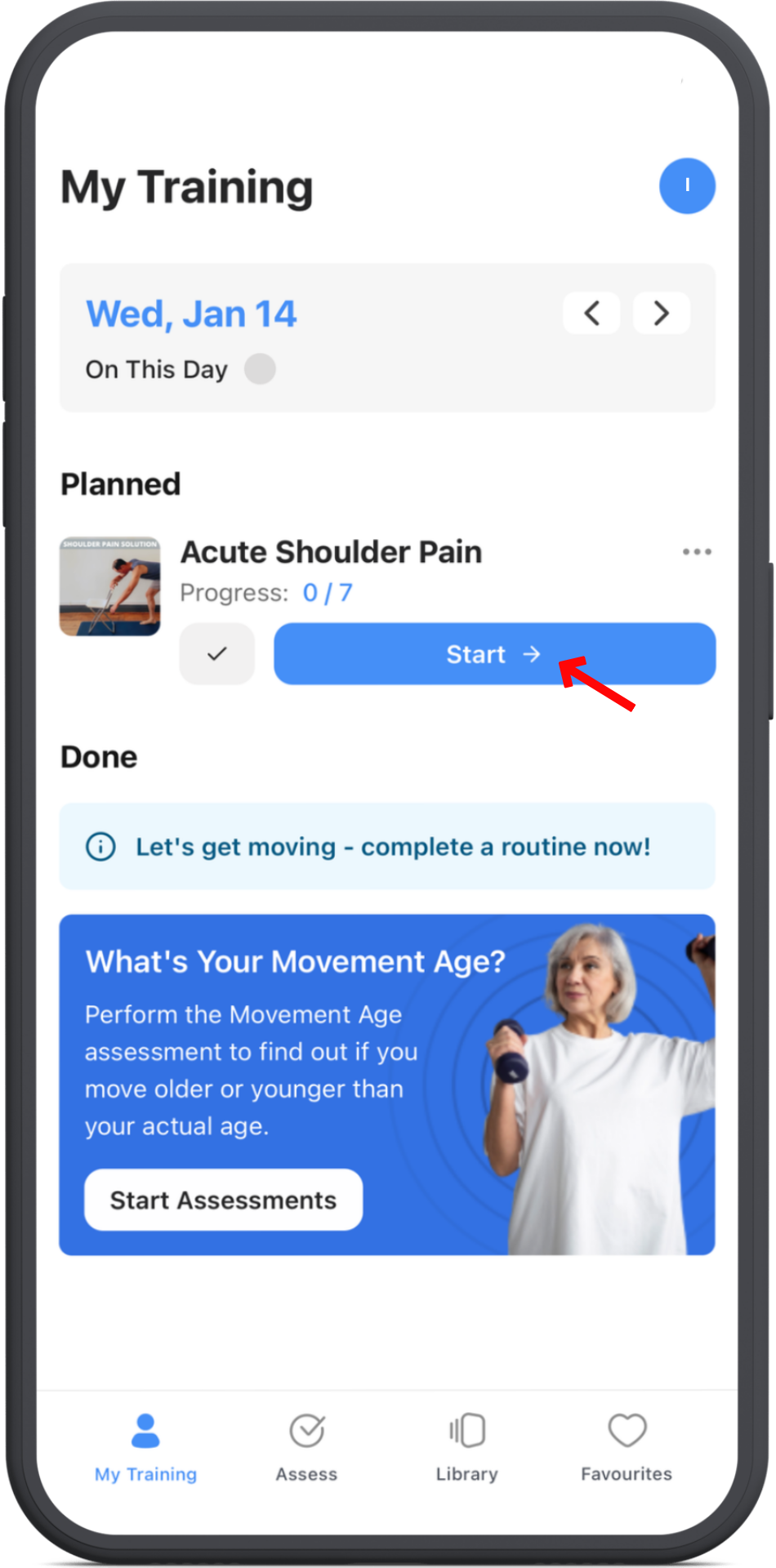
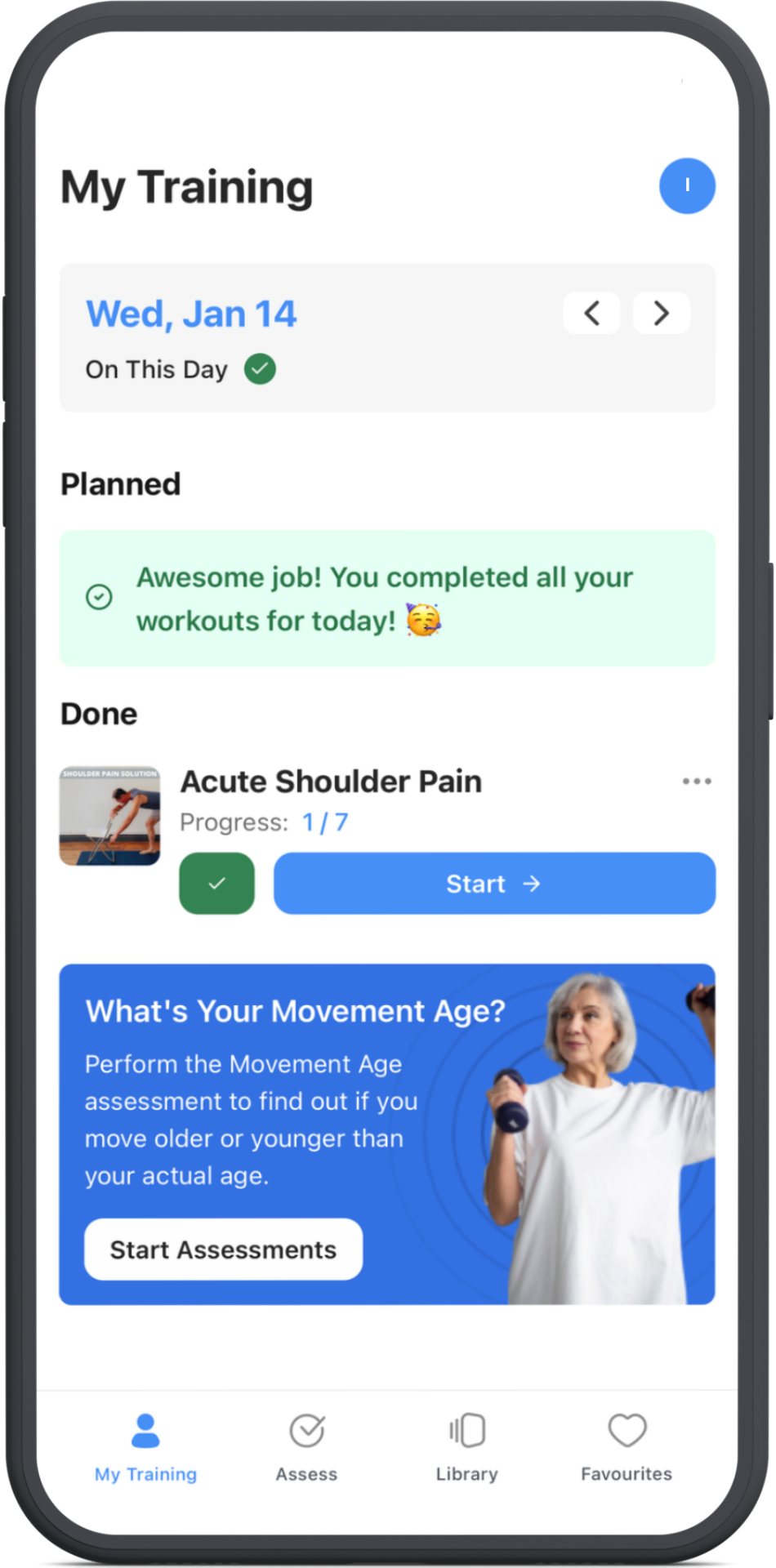
Your program routines will appear on the start date you chose and on the workout days you selected.
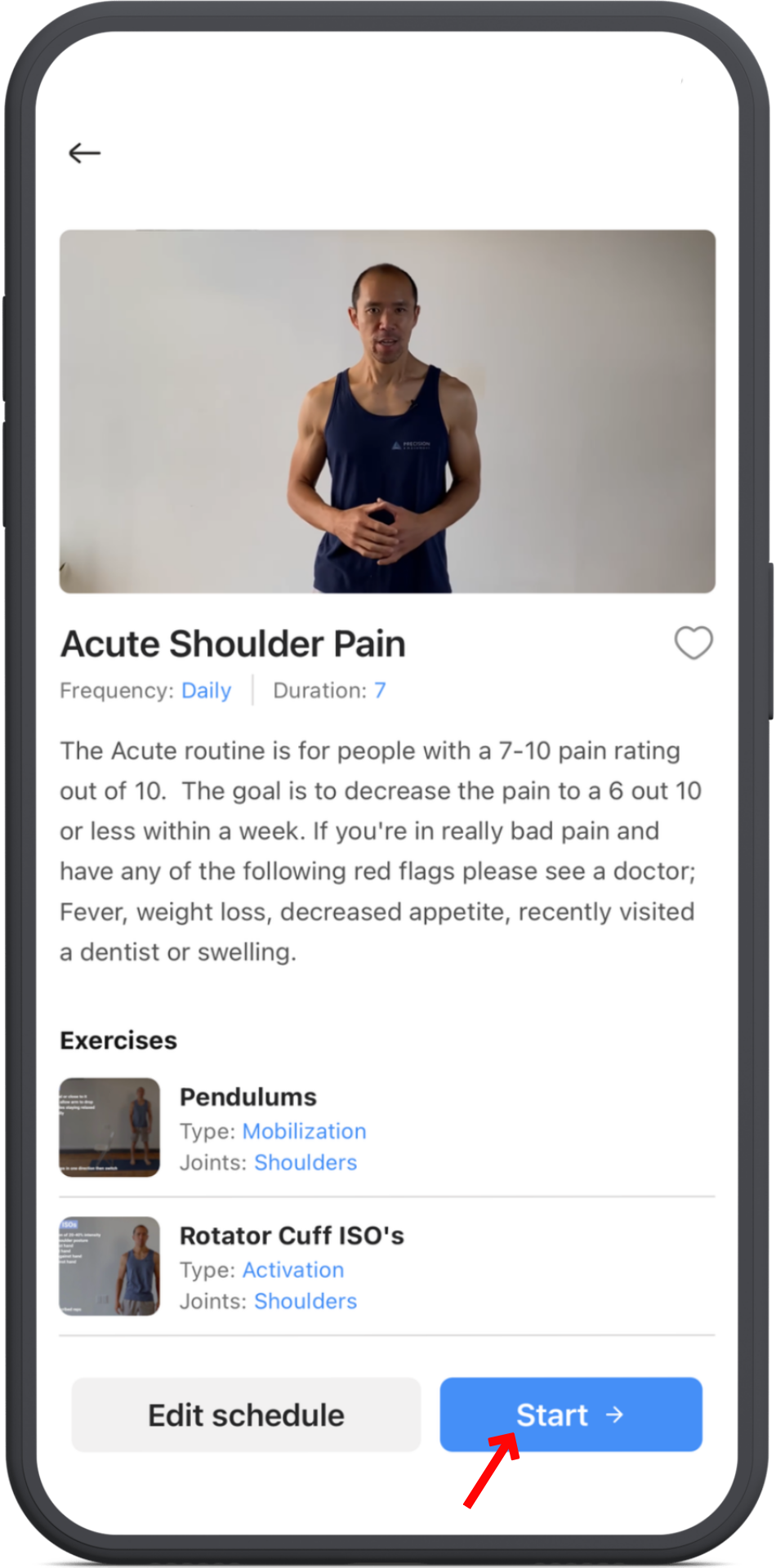
When a routine appears, just tap it to begin.
7. Complete the routine
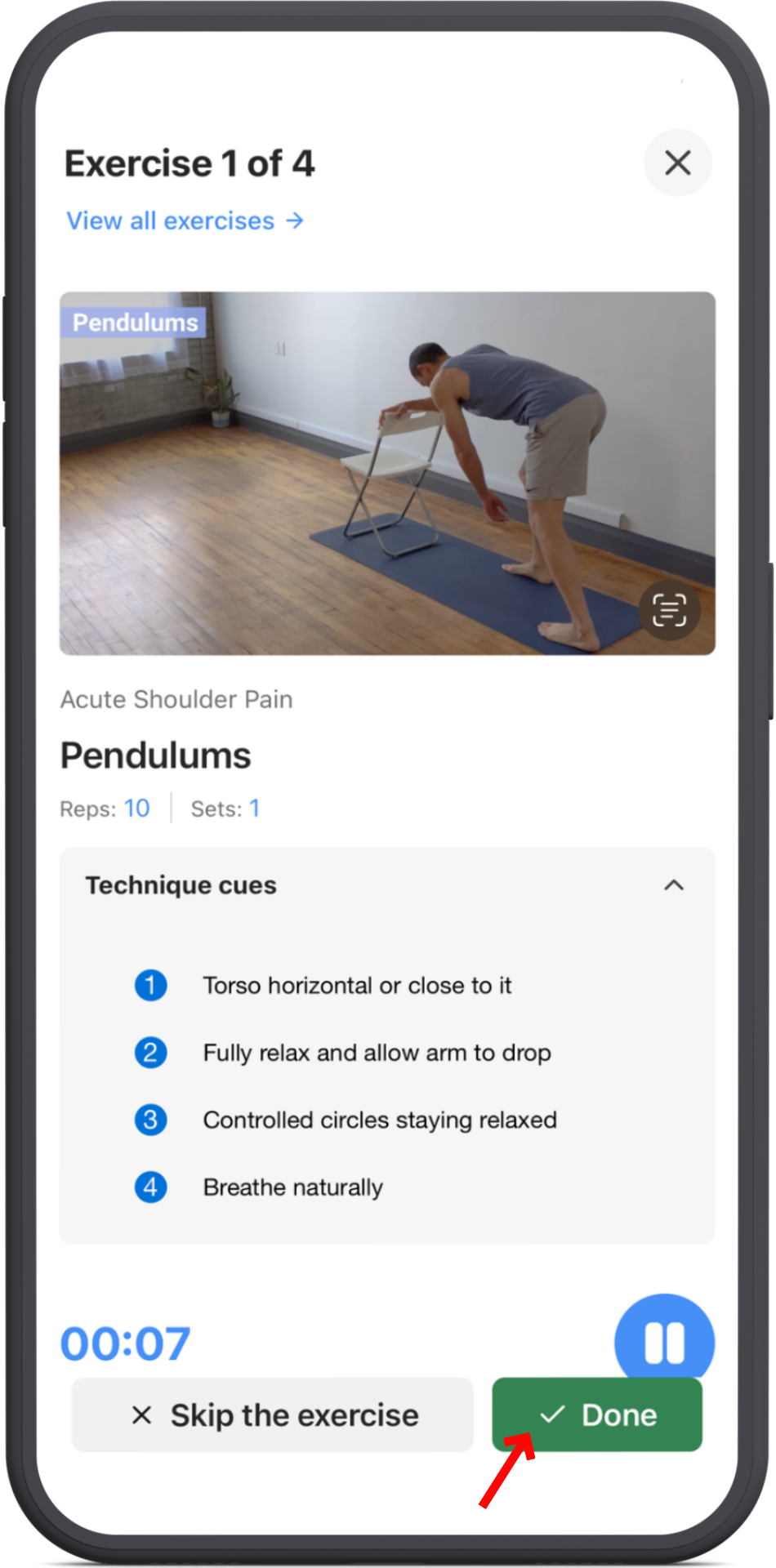
After you finish your routine for the day, you’ll see a green checkmark showing it’s complete.
8. Change your workout days
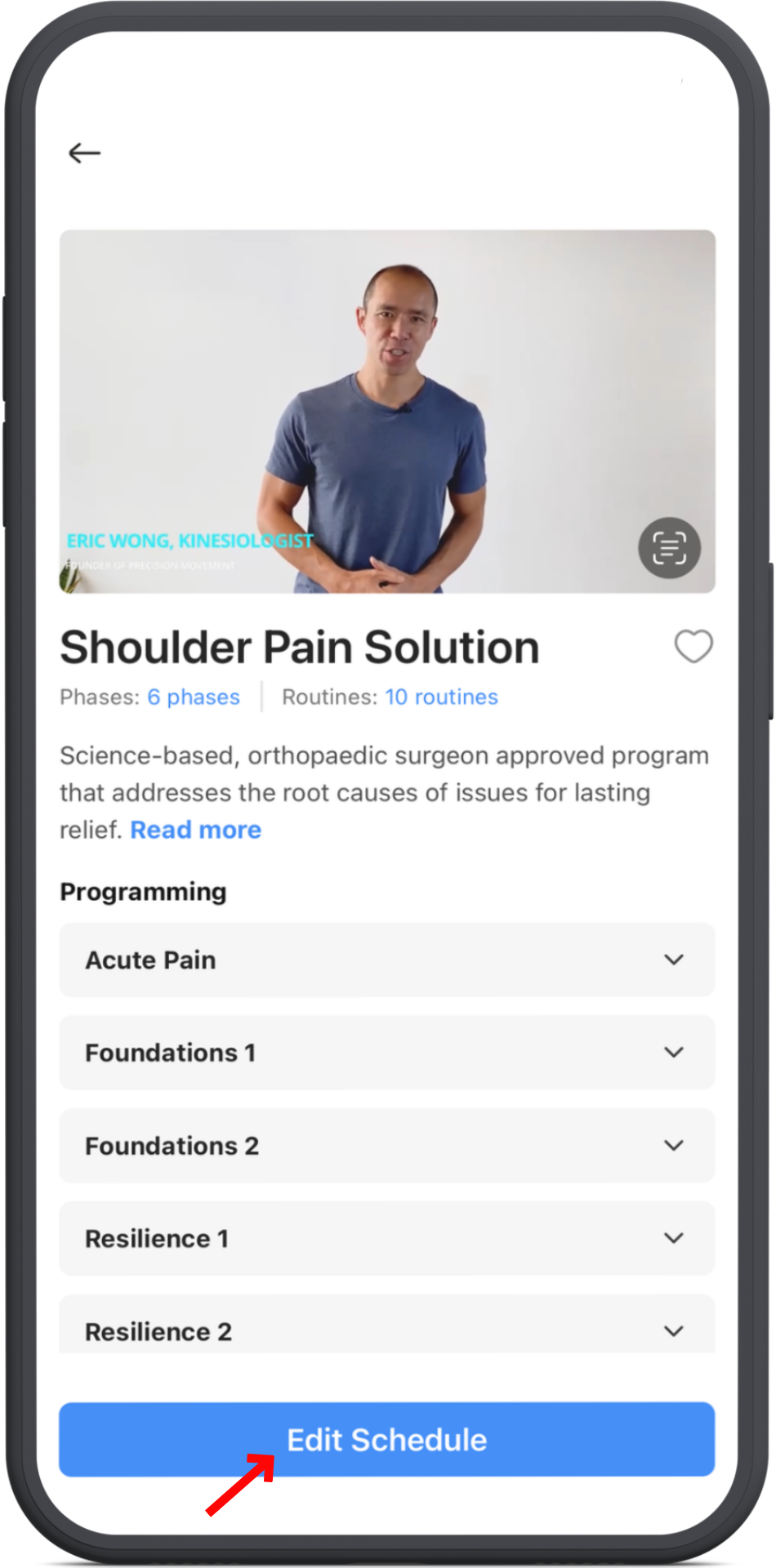
If you ever want to change your notification settings or workout days go back to the library tap Explore in the Programs area. Choose your program and tap Edit Schedule.
Stay consistent and trust the process— you’ll be surprised at how much better you can move and feel.
You’re on your way. Let’s keep going.