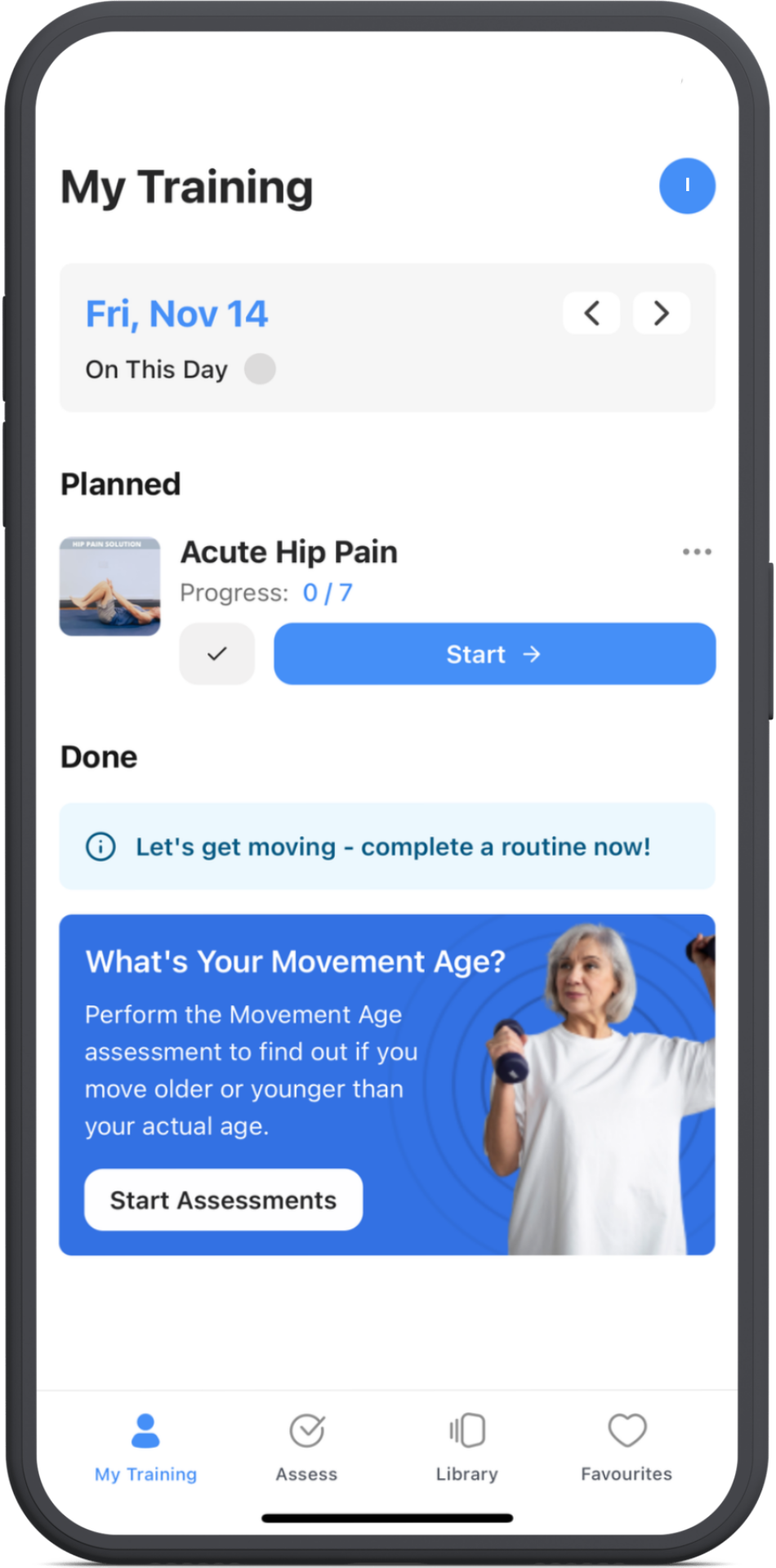
How to schedule a routine
Scheduling a routine makes it easier to stay on track and reach your goals.
Here’s how to do it inside the ROM Coach app:
1. Find the Routines area
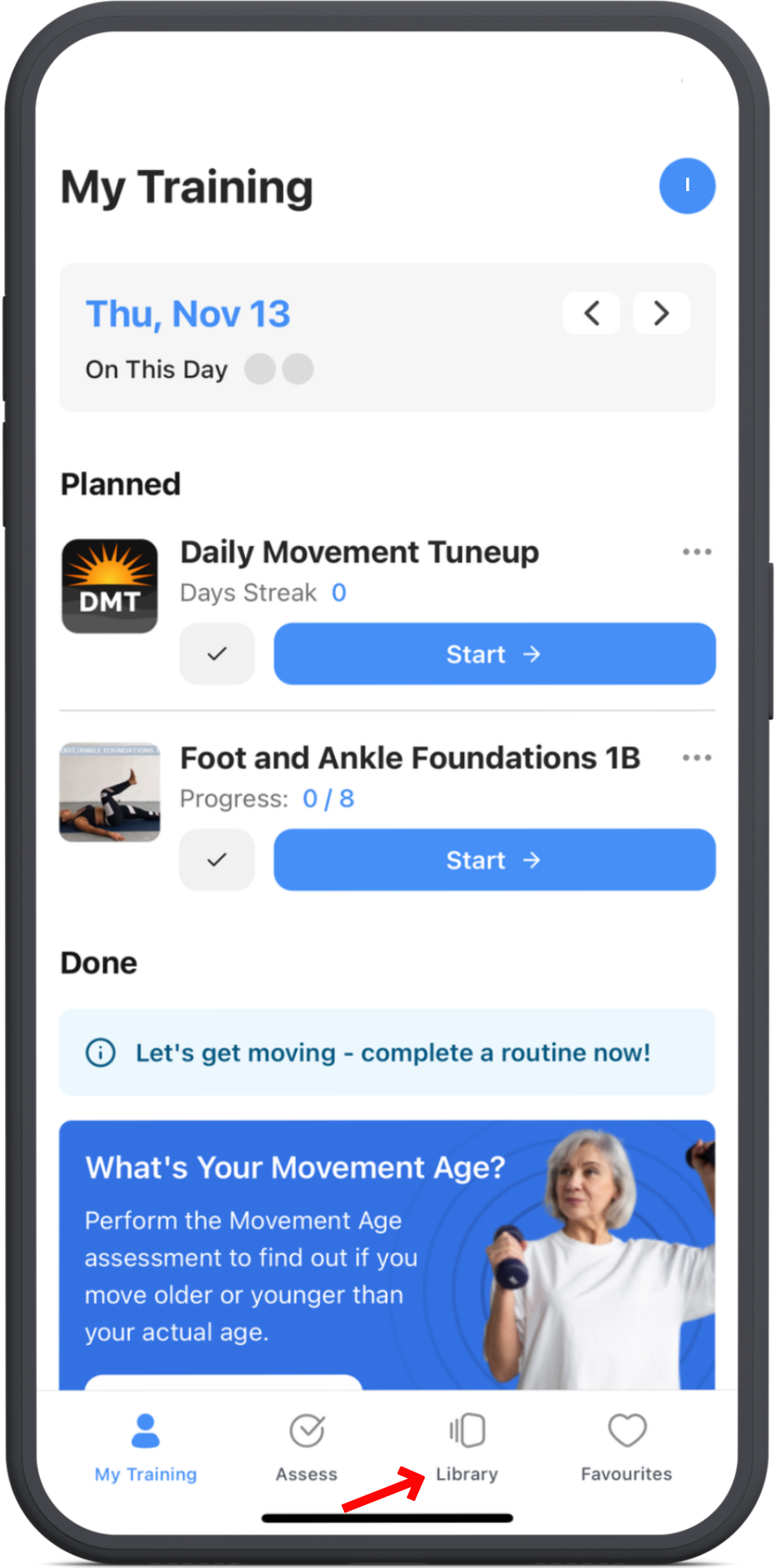
Open the ROM Coach app, then tap the Library tab at the bottom of your screen.
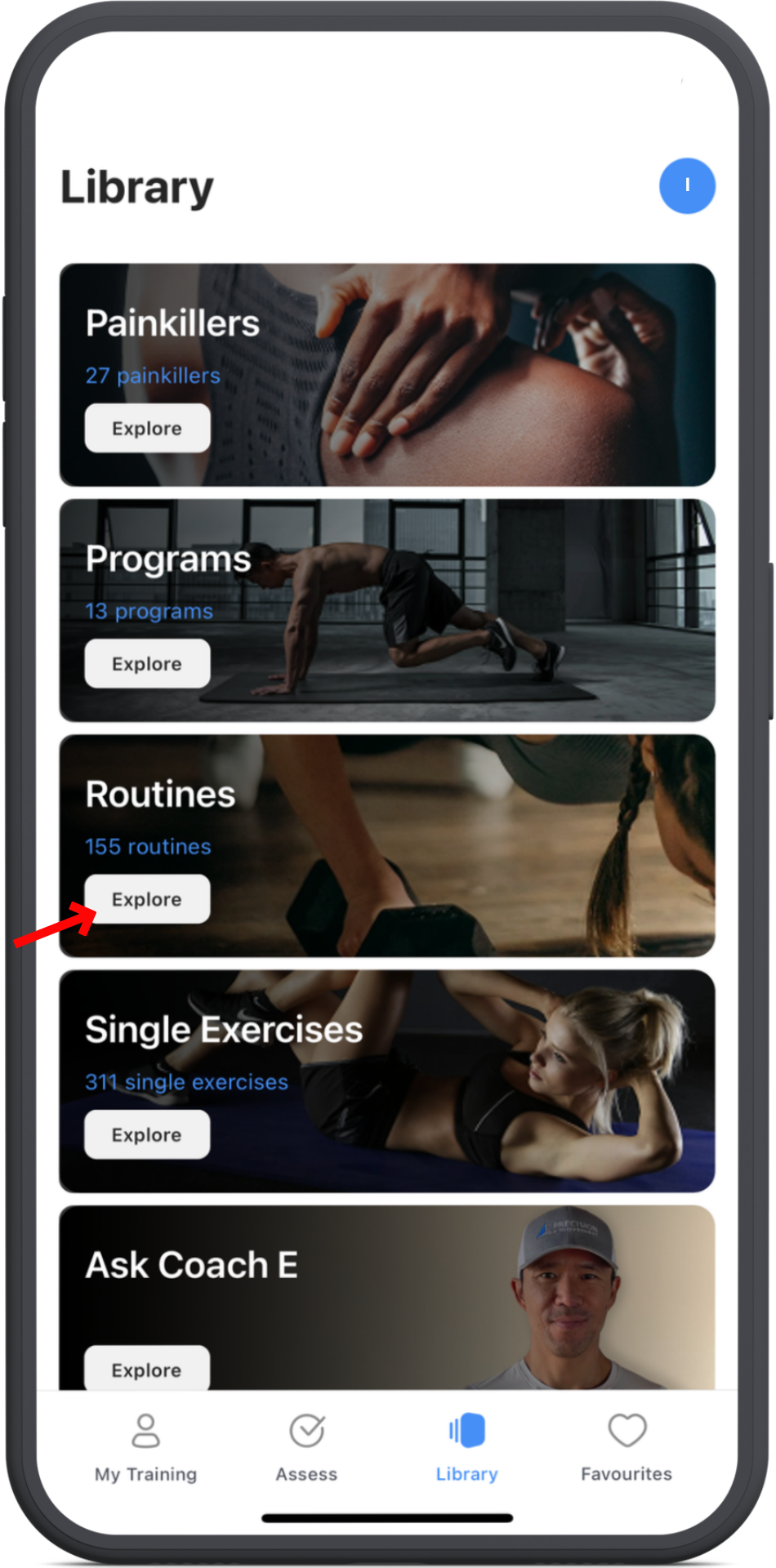
On the page, find Routines and tap Explore.
2. Choose your routine
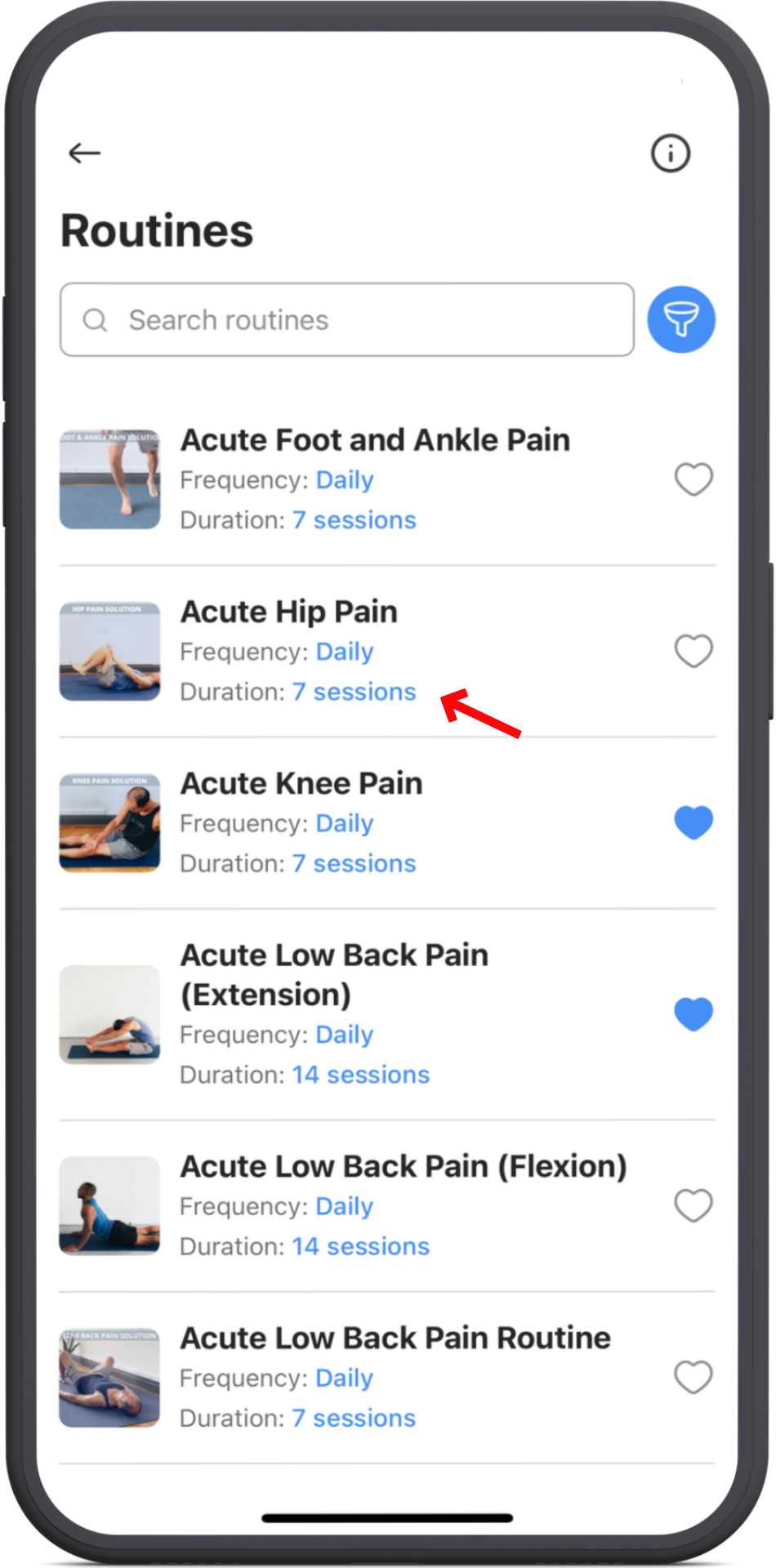
Tap on the routine you’d like to schedule.
You’ll see the routine details - take a moment to review them.
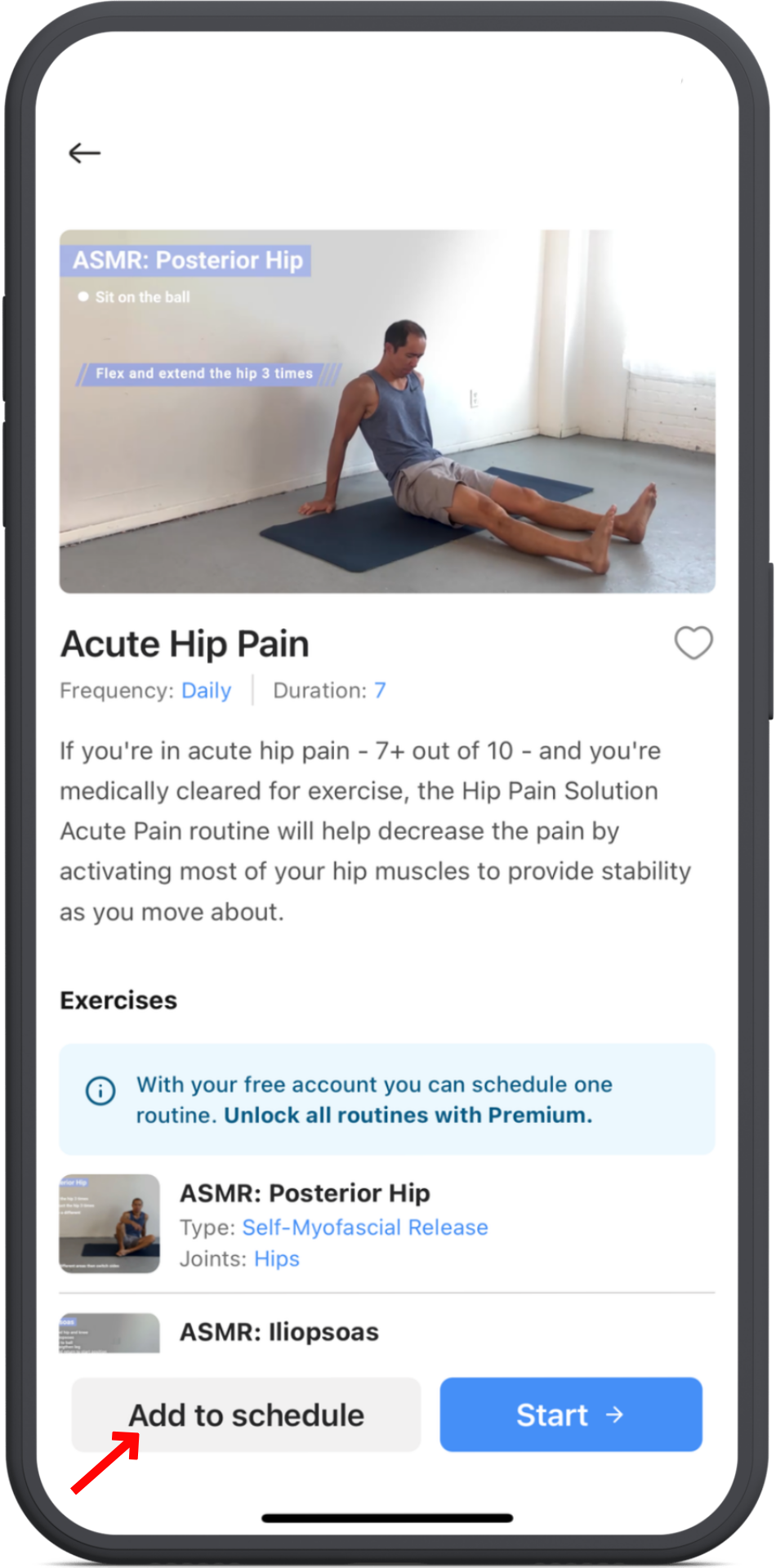
3. Add to schedule
When you’re ready, tap the Add to Schedule button at the bottom.
You can turn notifications on or off to get reminders when it’s time for your routine.
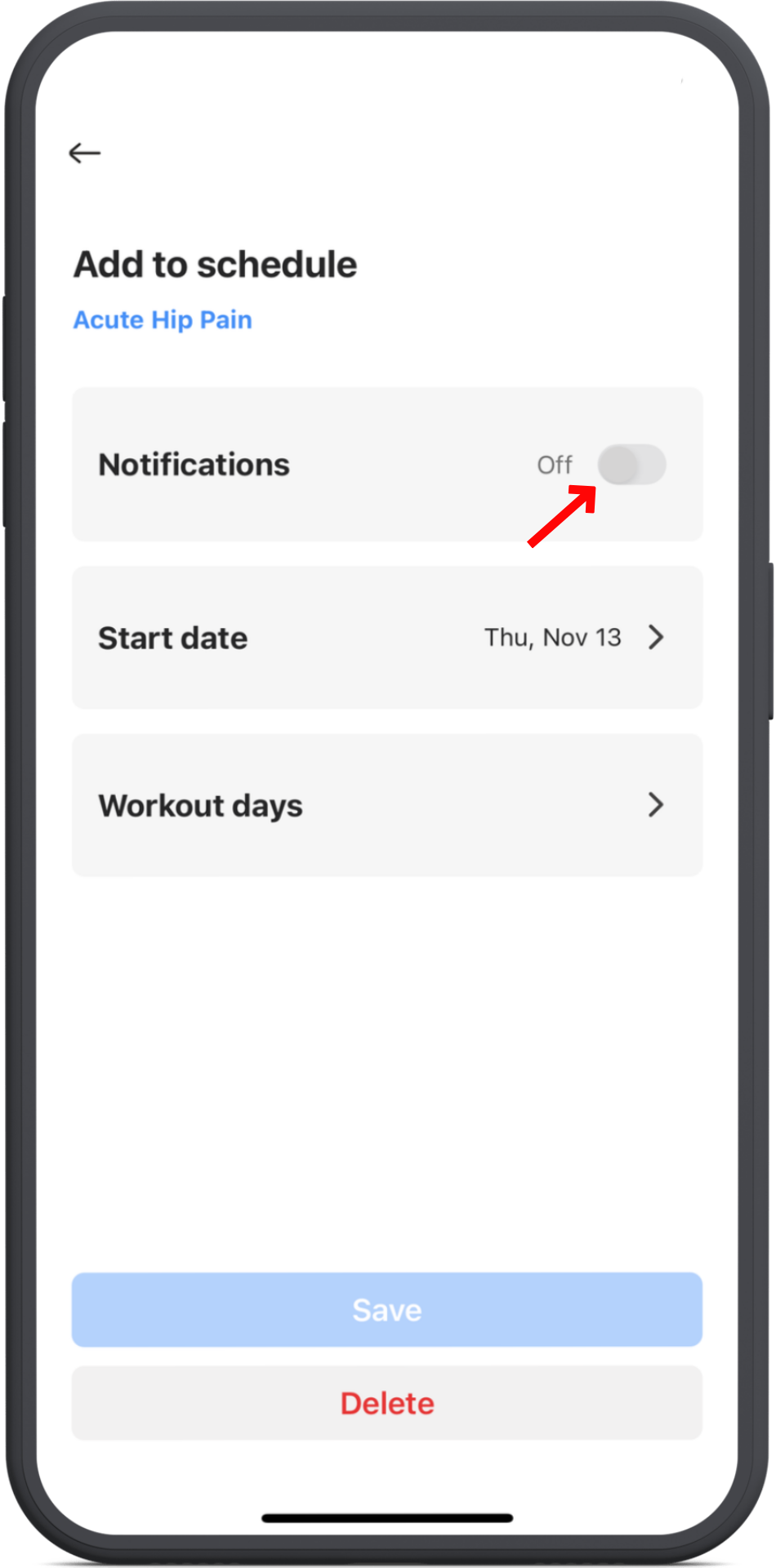
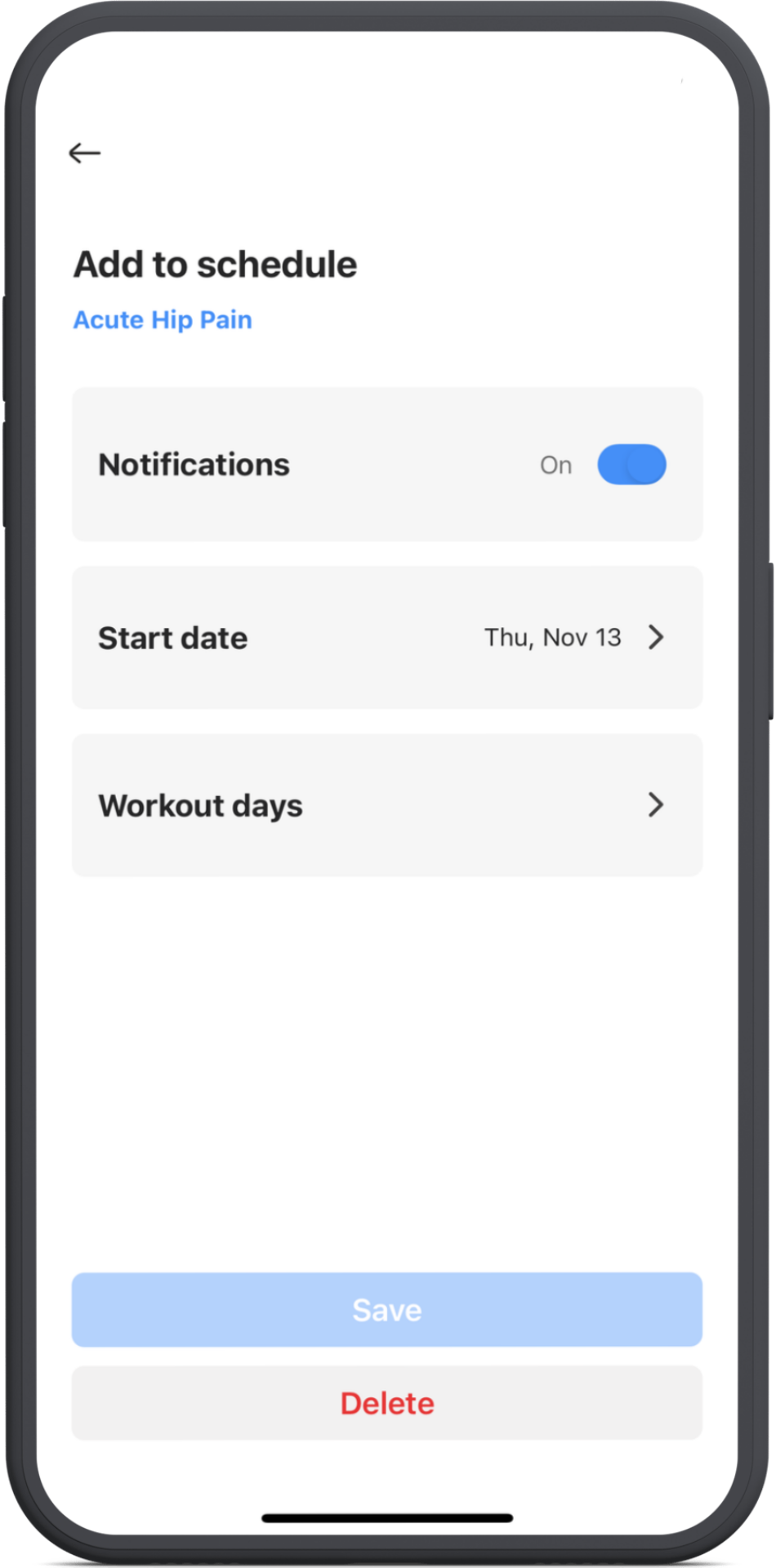
4. Select start date
Tap Start Date and choose when you’d like to begin.
Then tap Done once you’ve selected your date.
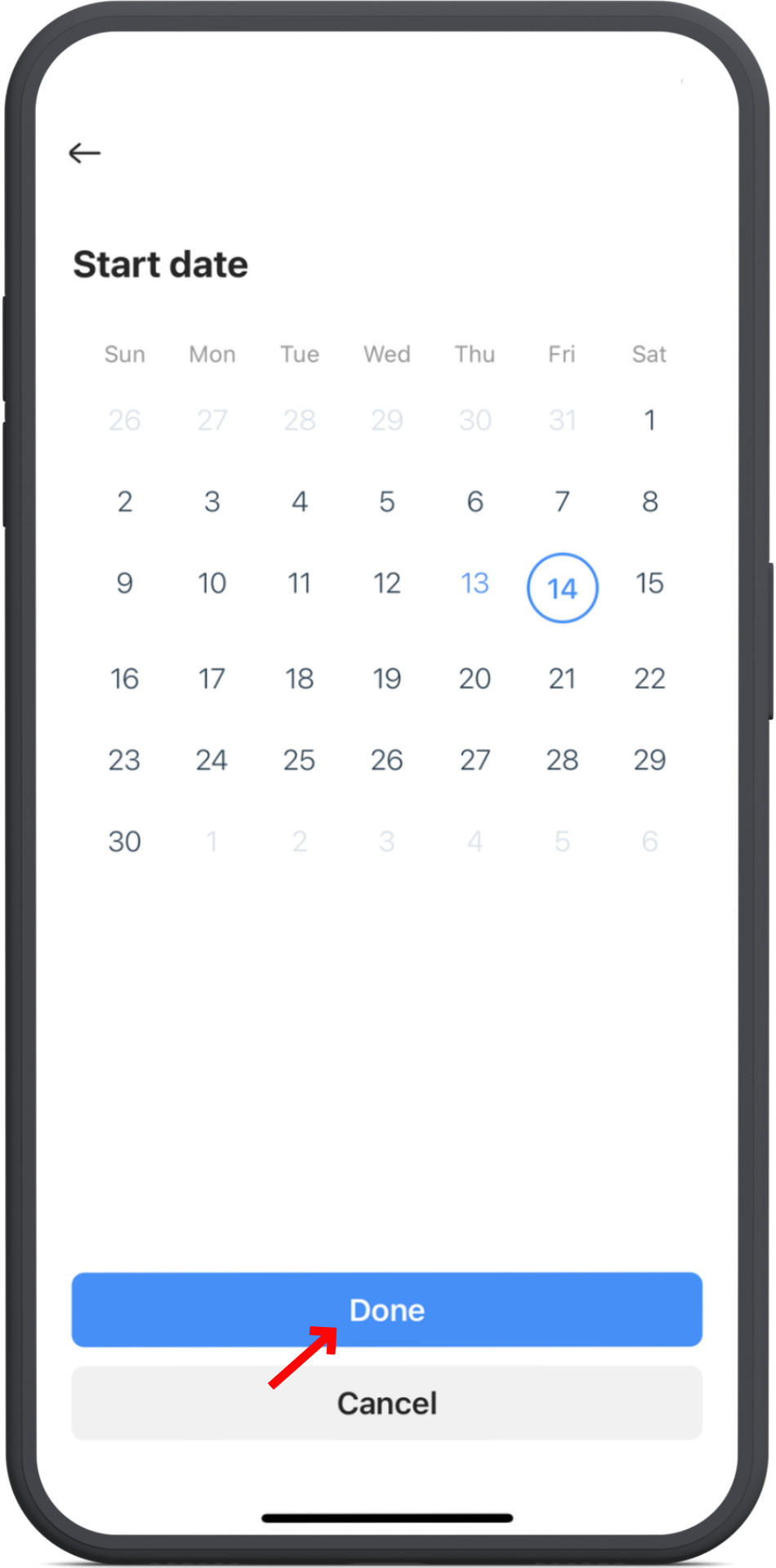
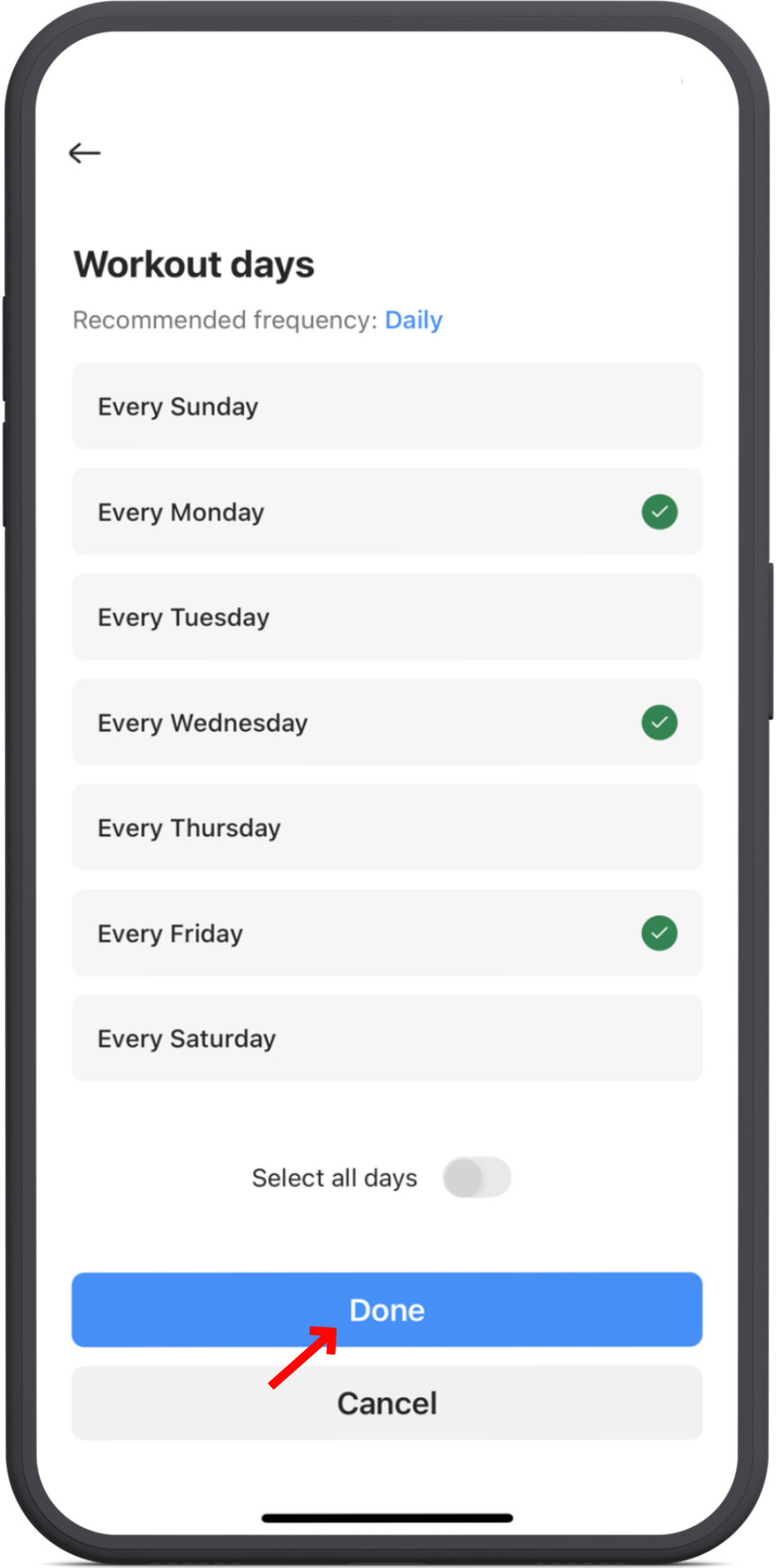
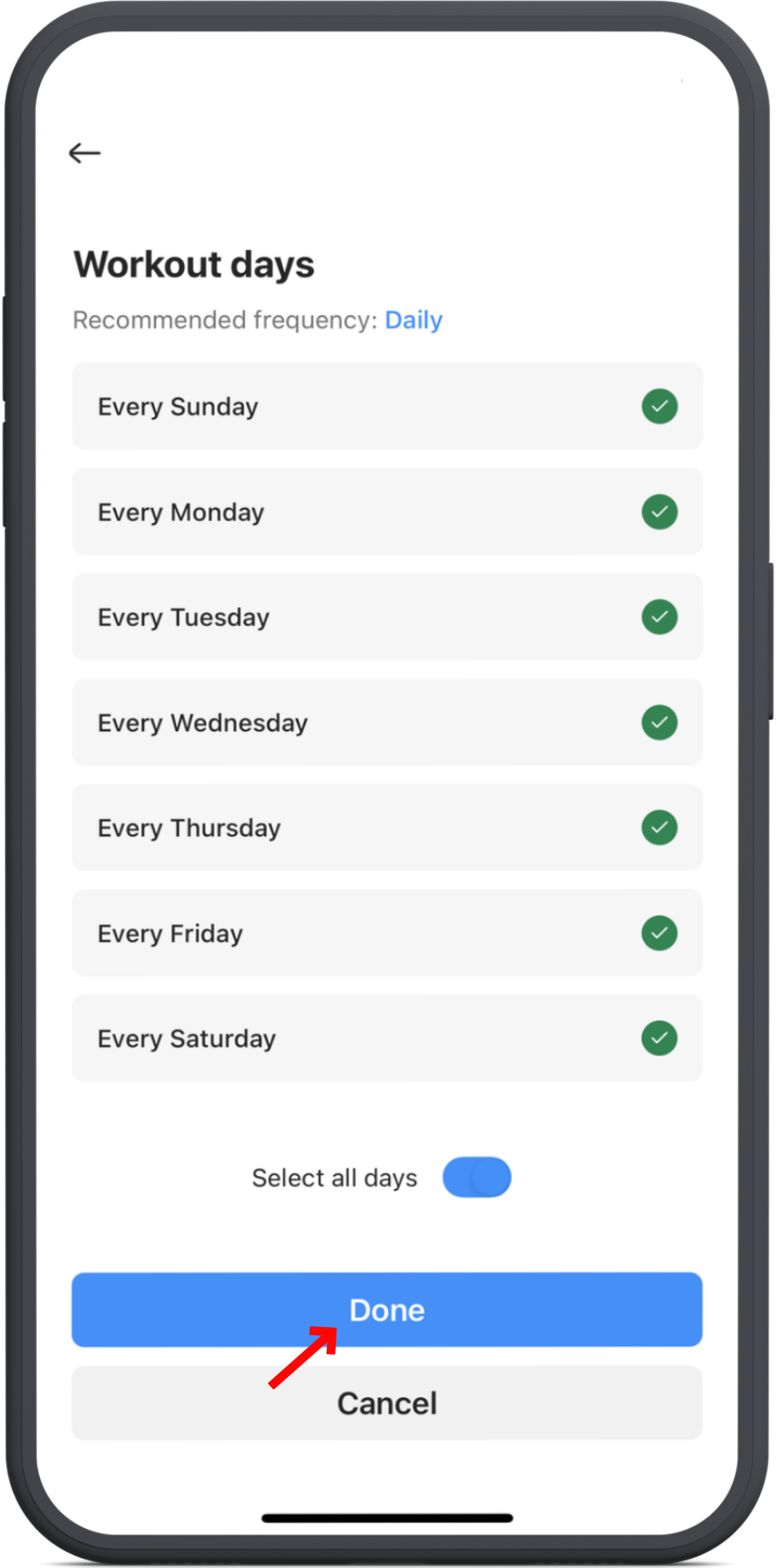
5. Choose workout days
Next, tap Workout Days to select which days of the week you’d like to perform the routine.
When finished, tap Done.
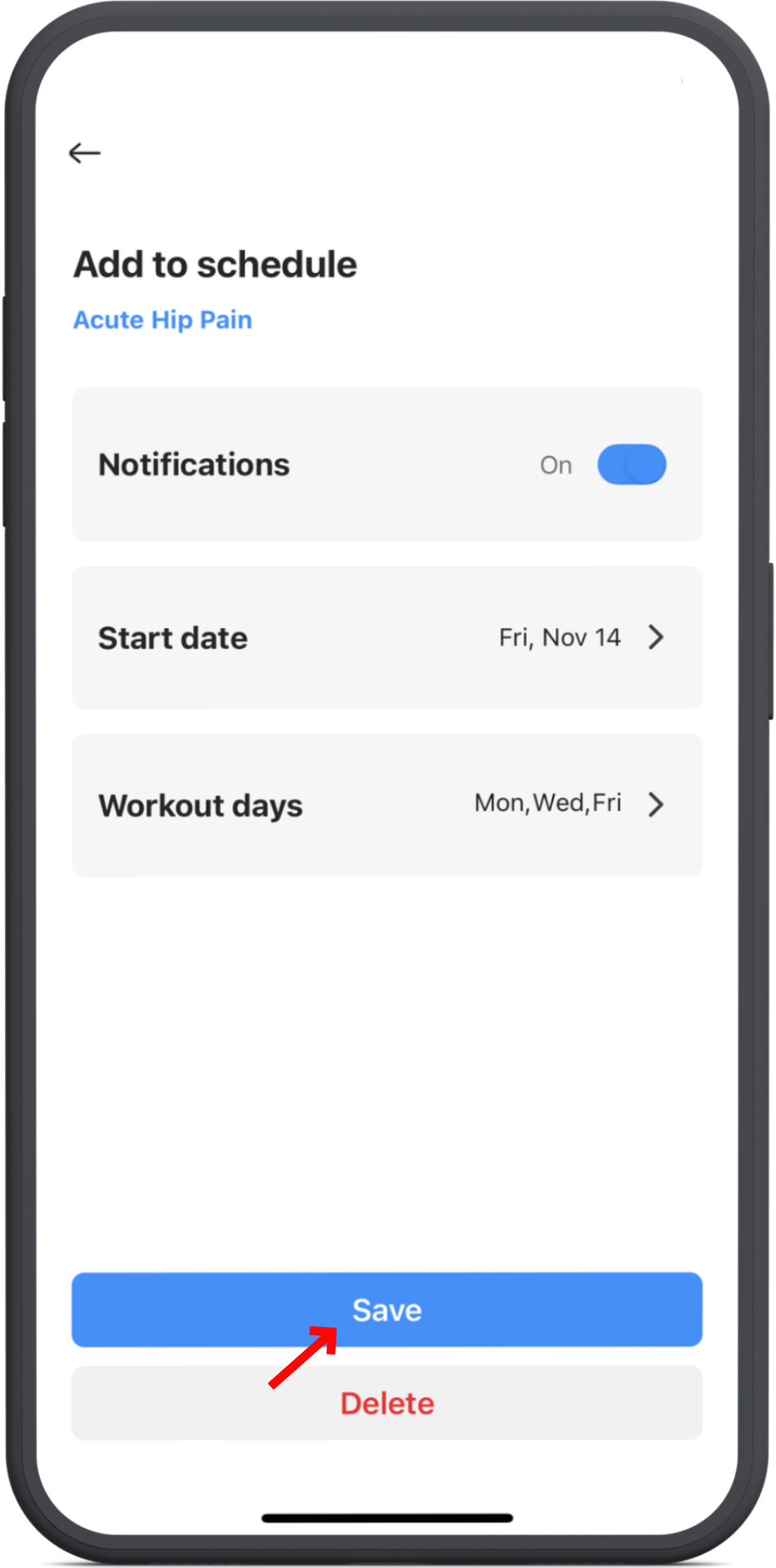
6. Save your schedule
Tap the blue Save button to confirm and save your scheduled routine.
You're set!
Finally, tap on My Training at the bottom of the screen to return to your training area.
Your scheduled routine will appear there on the days you’ve set.