How to setup custom routines
ROM Coach custom routines give you full control letting you build and schedule training that fits you perfectly.
Here’s how to do it inside the ROM Coach app:
1. Find the Routines area
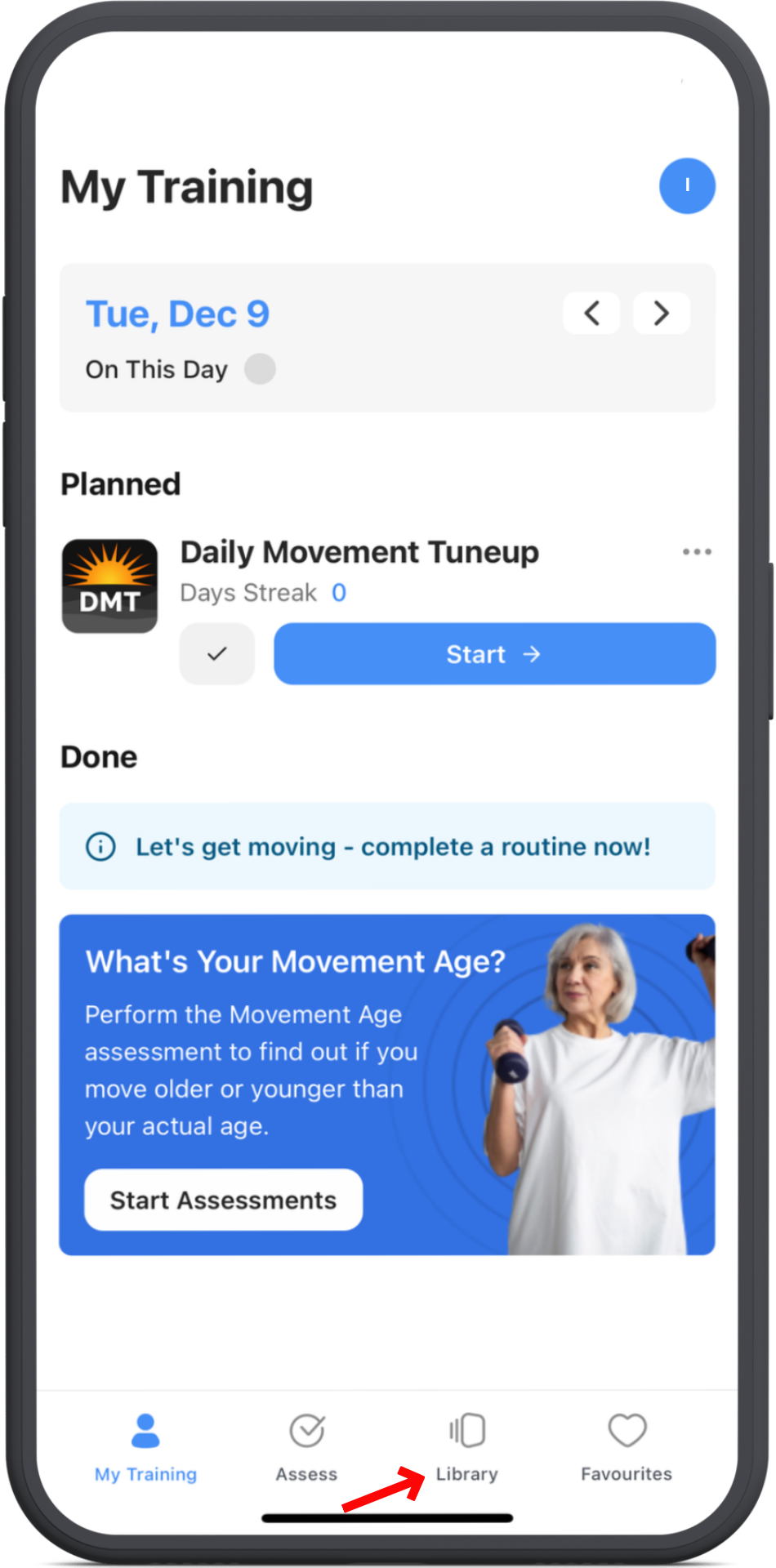
Open the ROM Coach app, then tap the Library tab at the bottom of your screen.
2. Browse the desired exercise
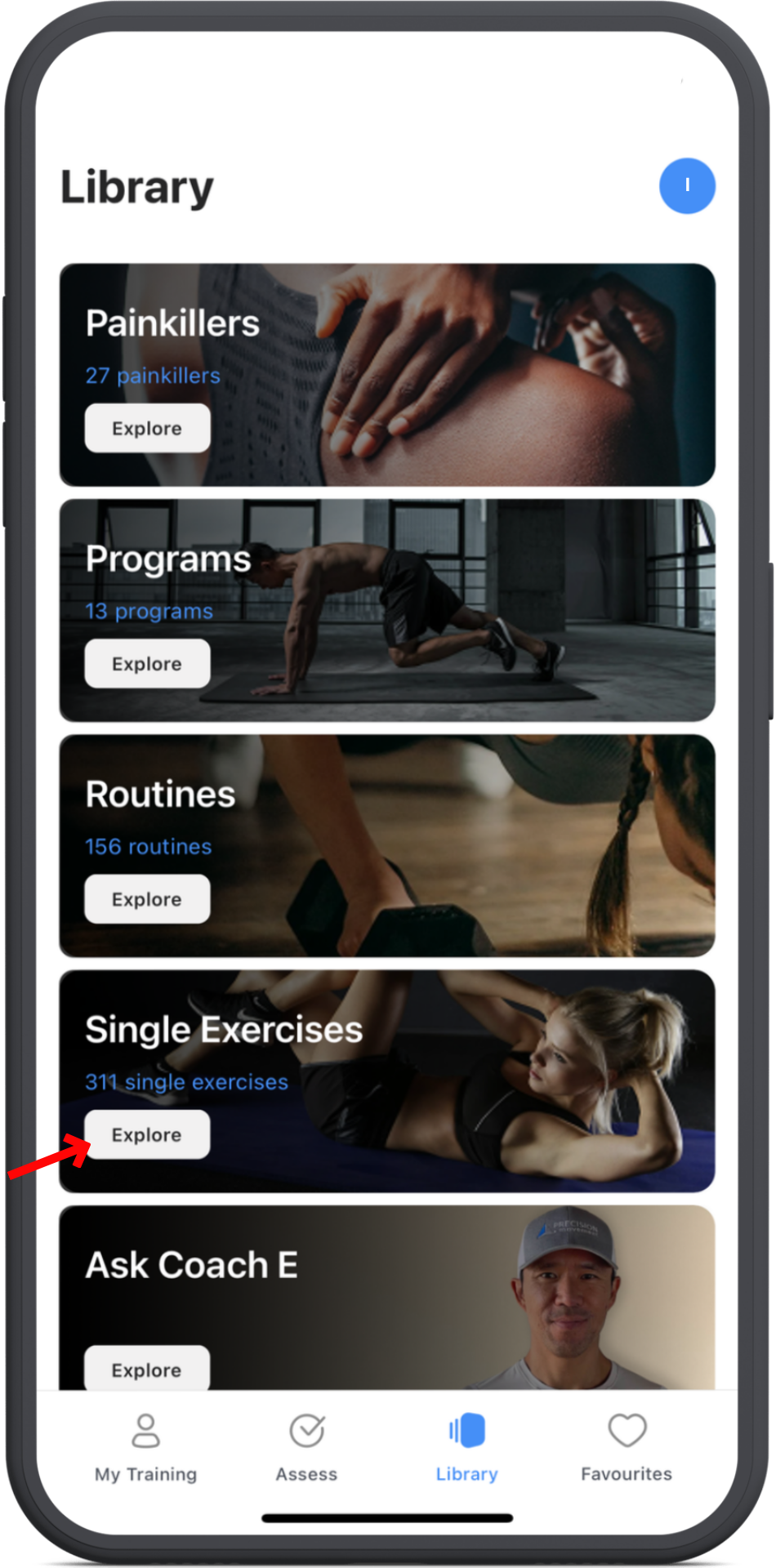
On the page, find Routines and tap Explore.
From the Explore tab, tap the Single Exercises section.
From here tap on any exercise you want to include in your custom routine.
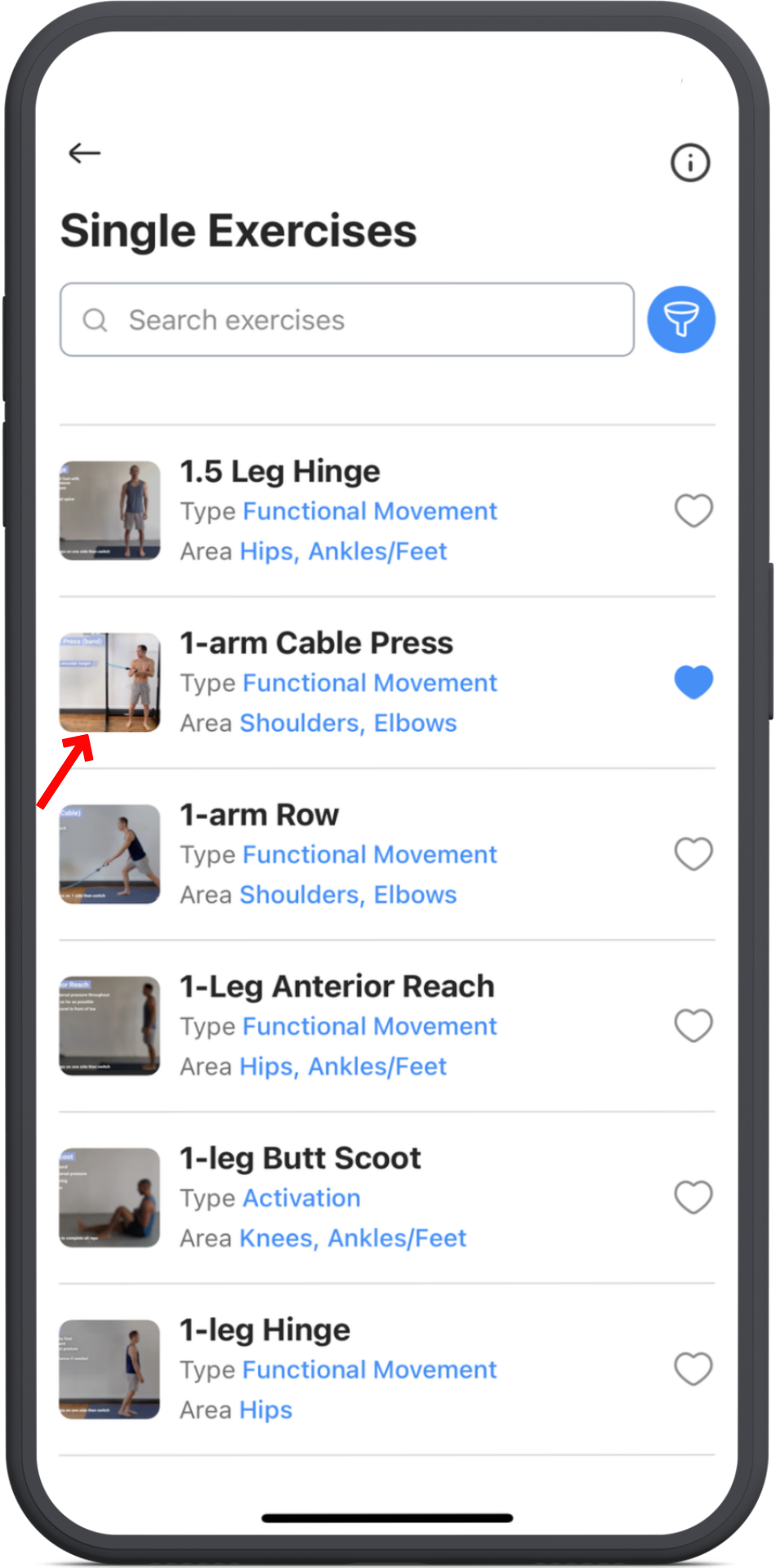
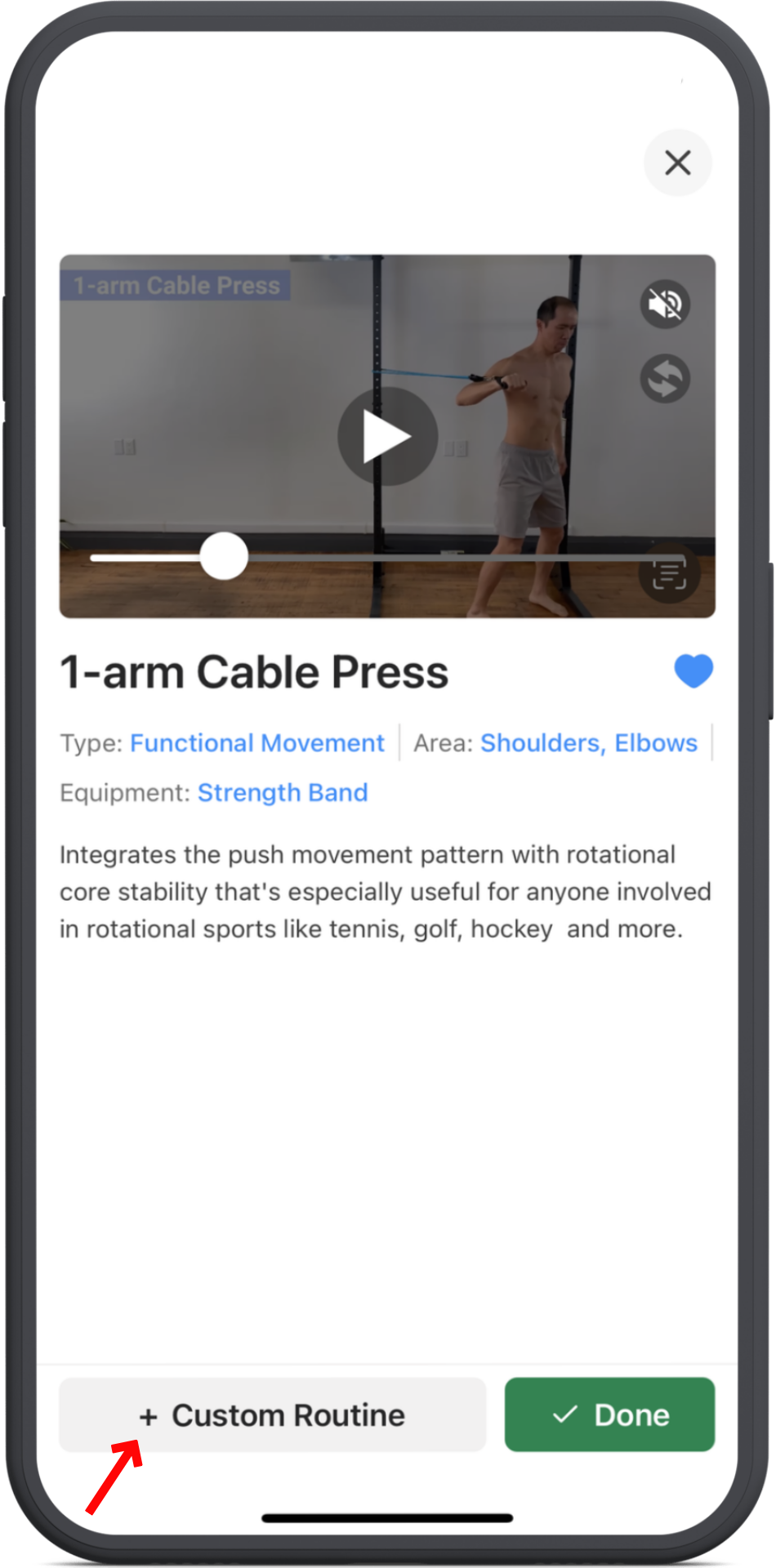
3. Add to custom routine
Tap + Custom Routine at the bottom.
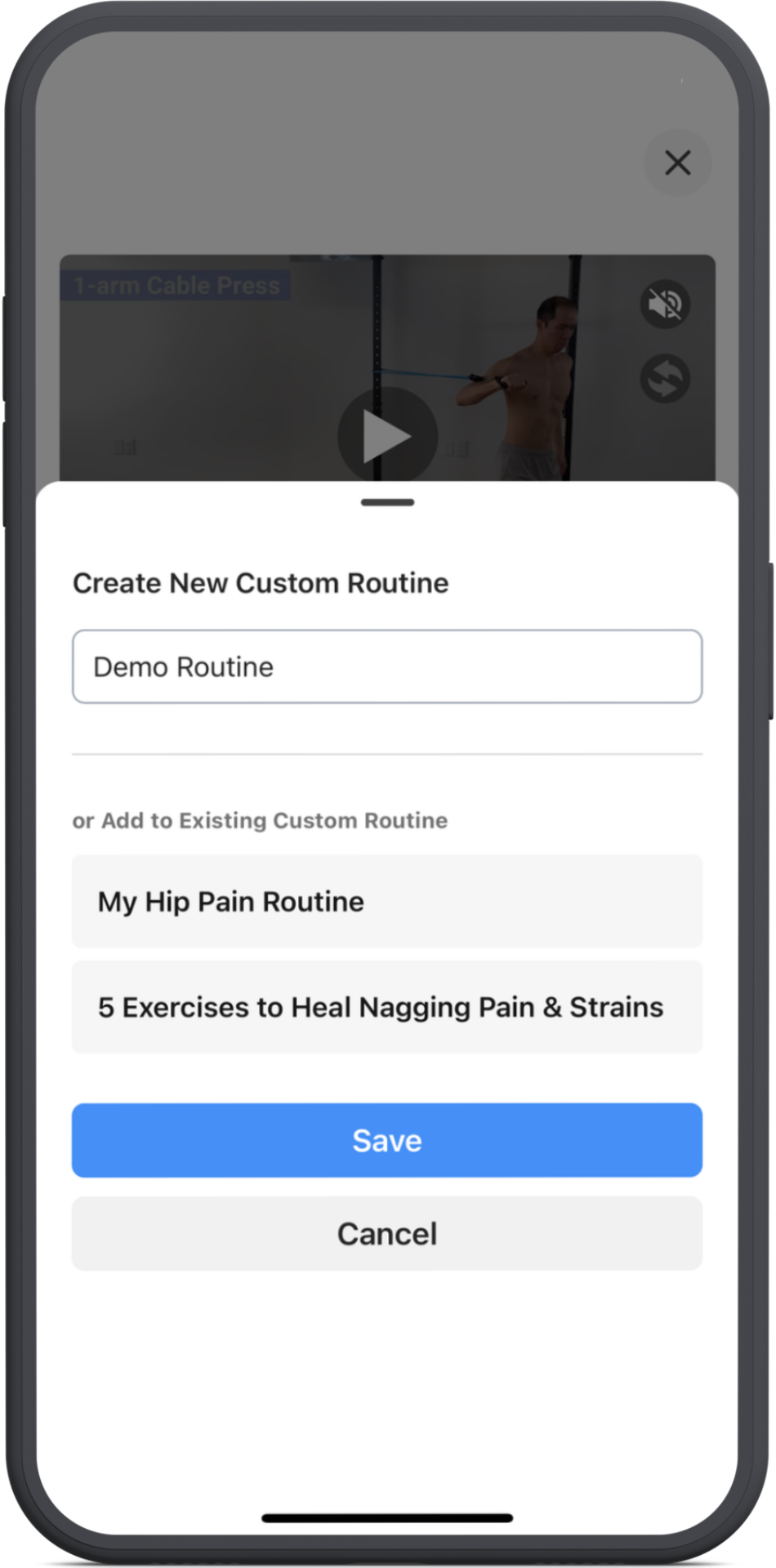
You can create a new routine by typing in name or add the exercise to one of your existing custom routines by tapping on their name.
Repeat this for every exercise you want to include.
4. Find your custom routine
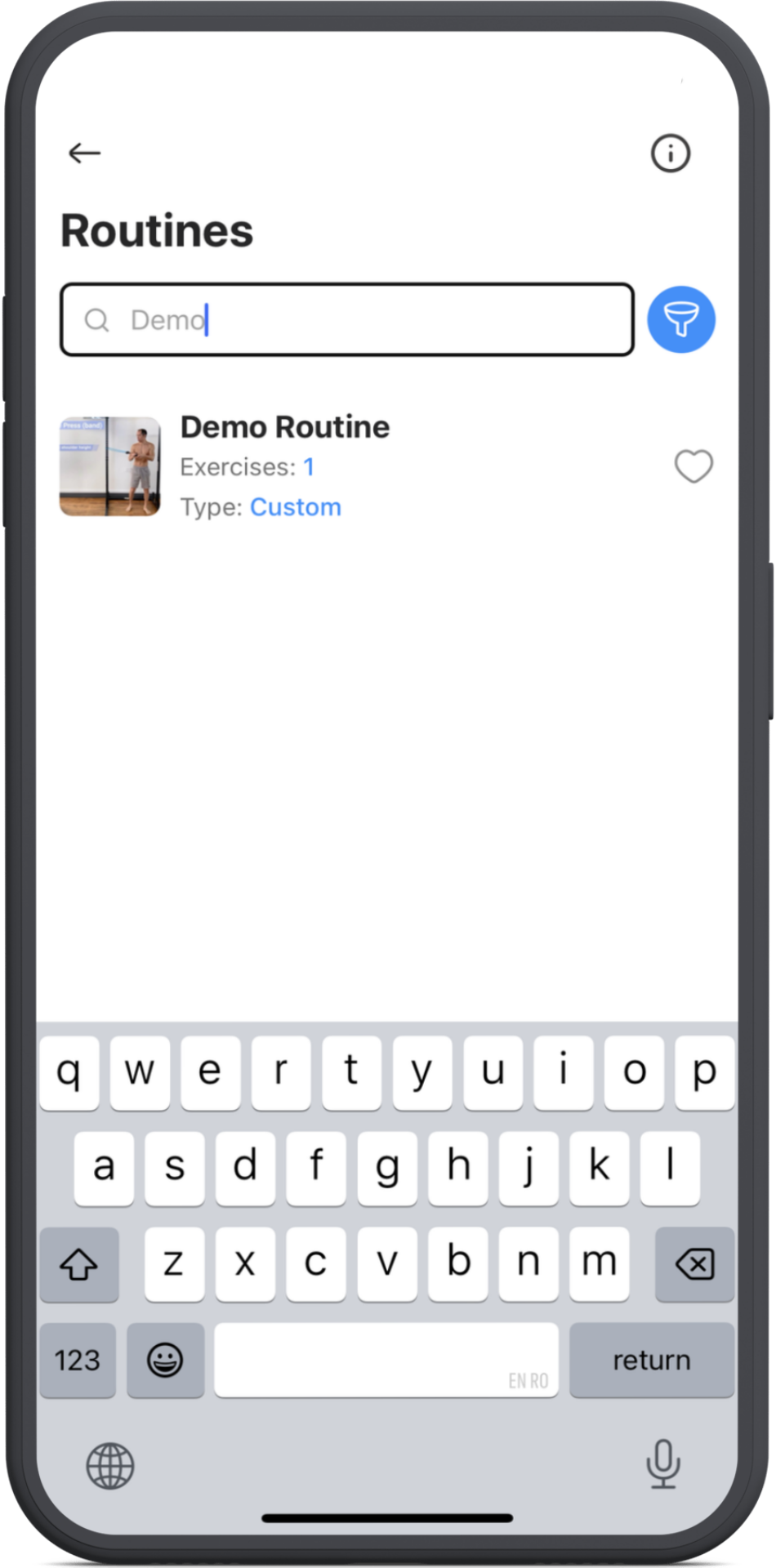
You can find your custom routine in 2 ways.
First you can simply search by typing the routine name into the search bar at the top.
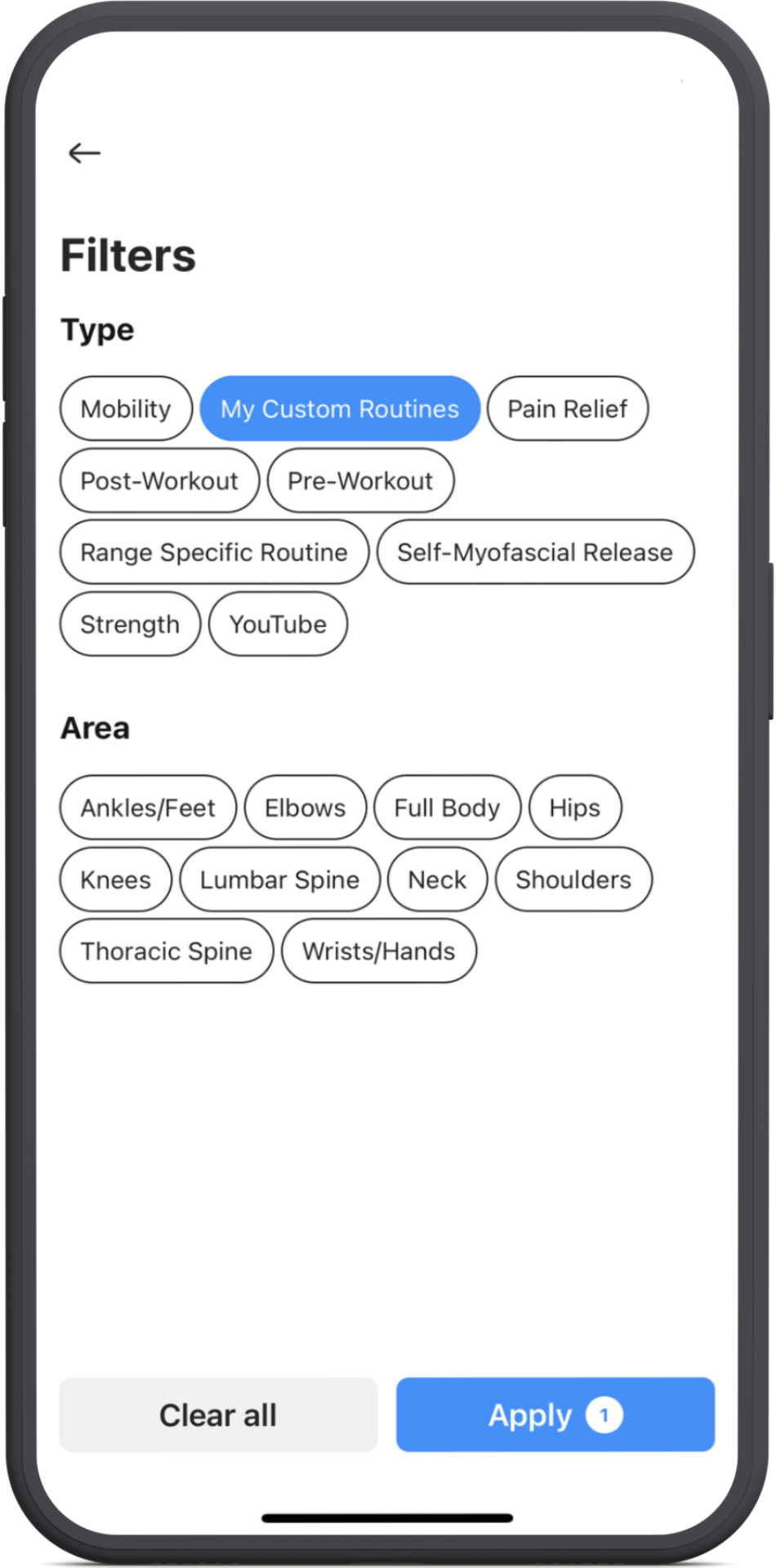
Or you can filter the routines by tapping the blue funnel icon next to the search bar.
5. To edit a custom routine
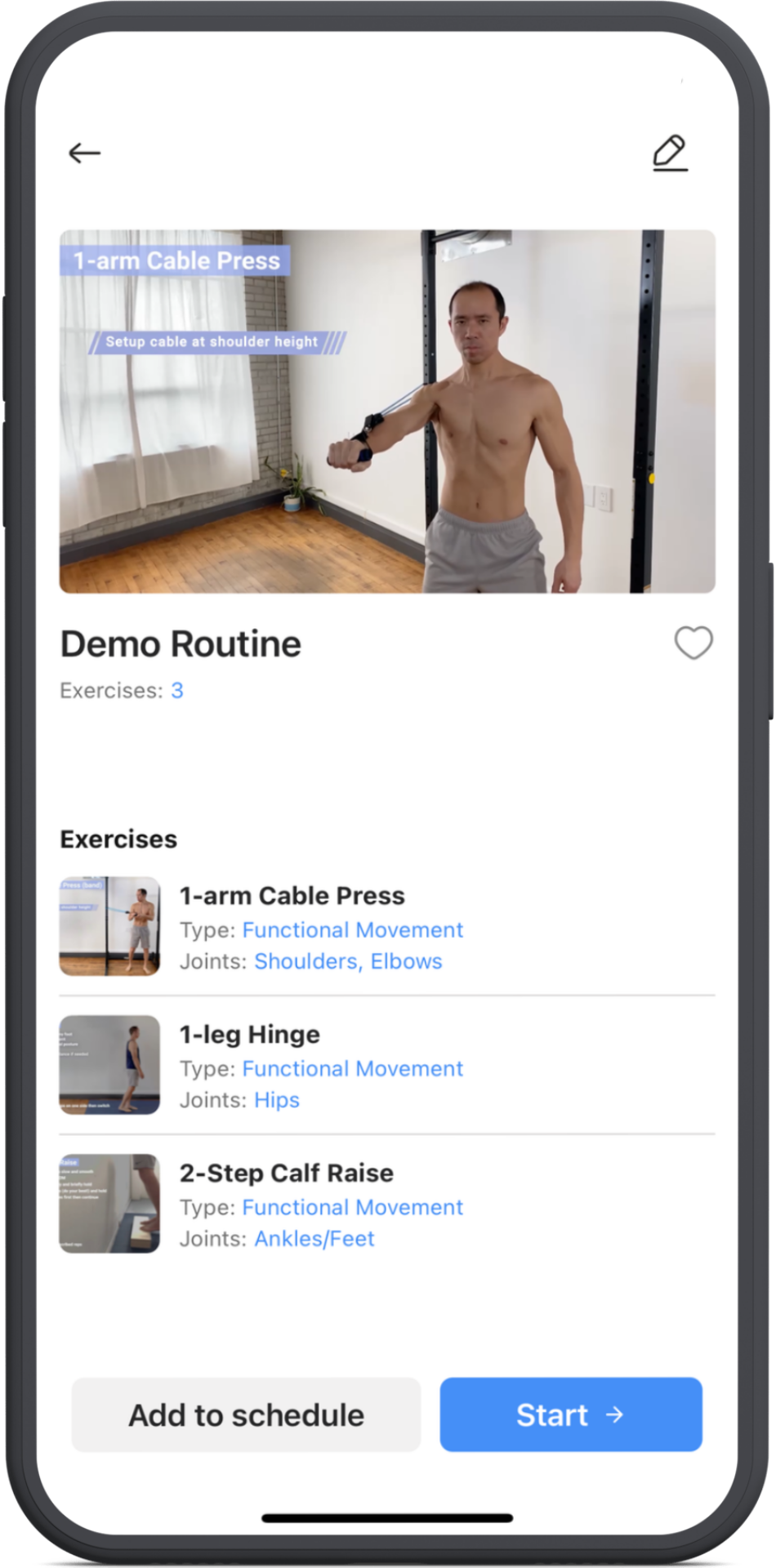
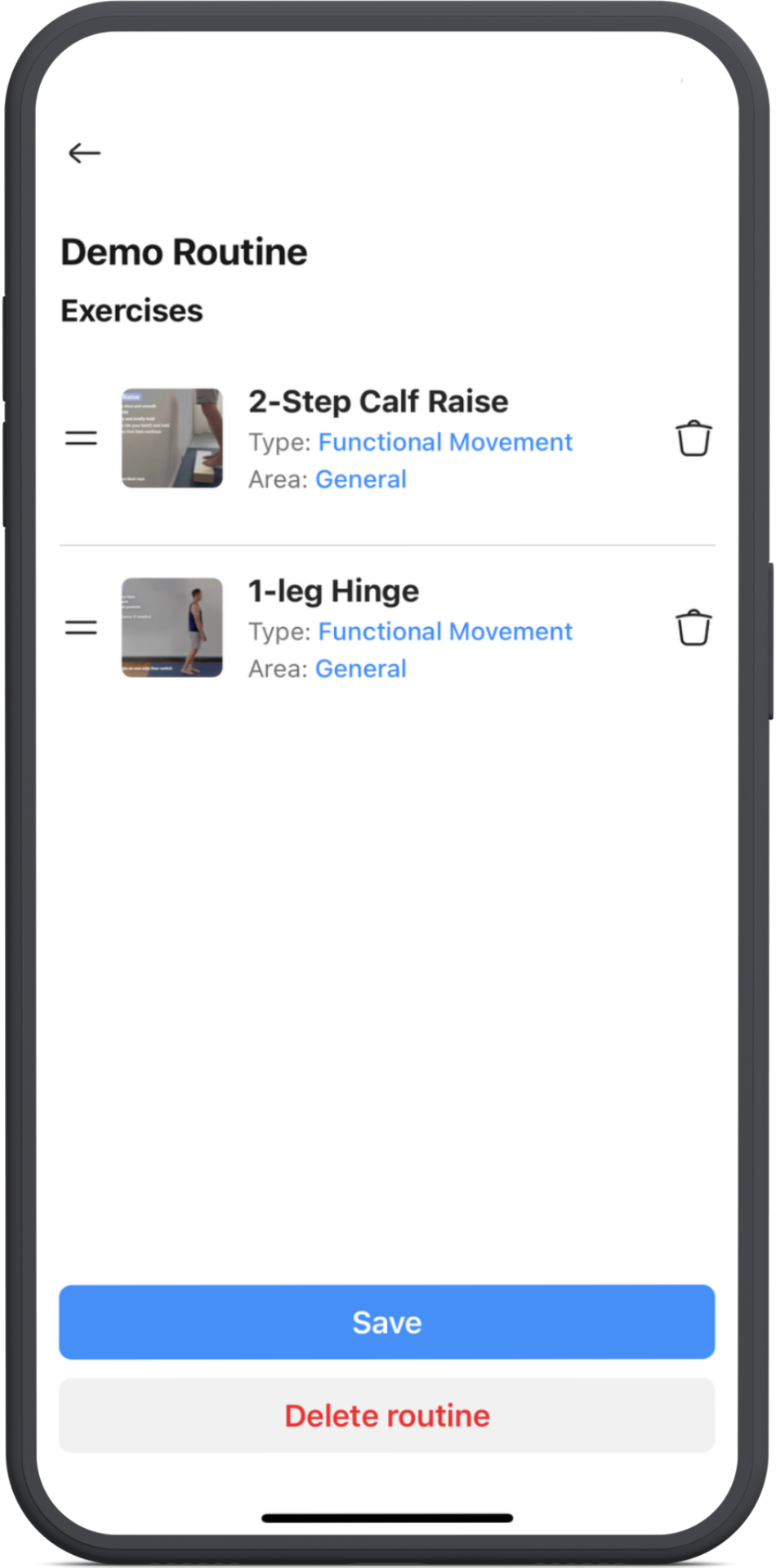
To rearrange the order of exercises inside your custom routine, or to delete one of the exercises, you'll need to edit your routine from the Routine Library.
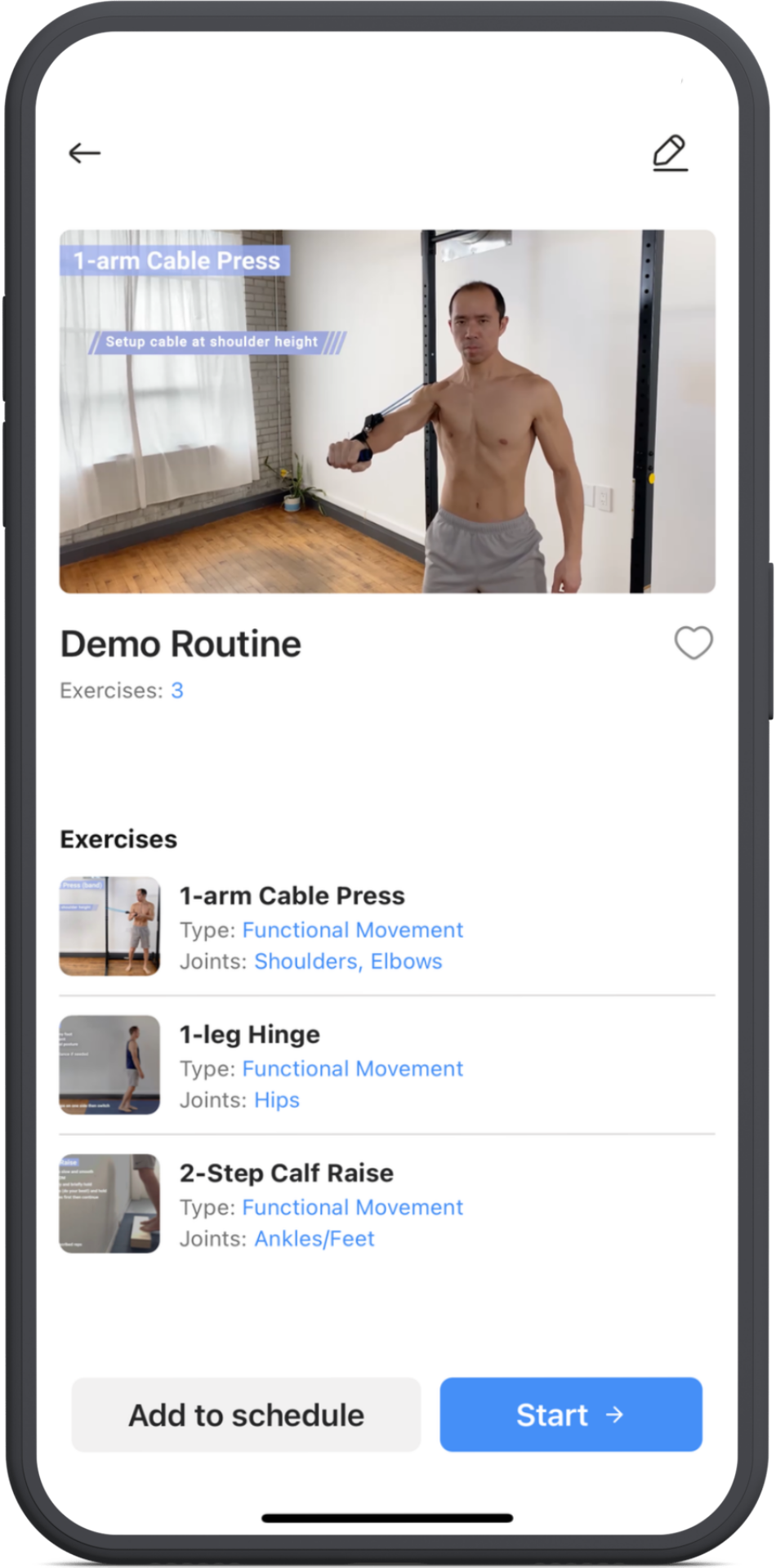
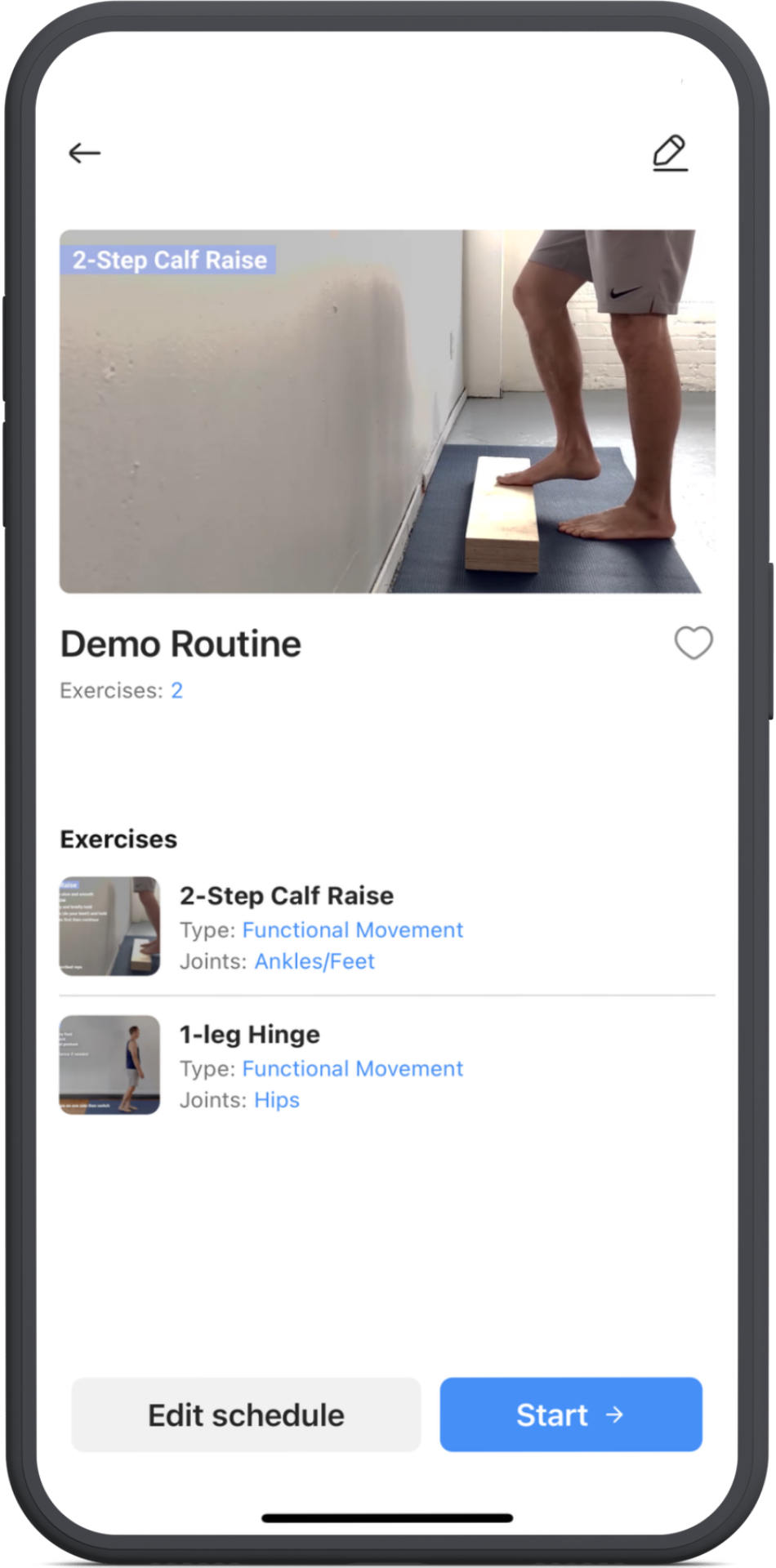
Tap on the Routine then tap on the small pencil icon at the top right.
To move an exercise, just tap on the double lines and hold, then slide your finger up or down.
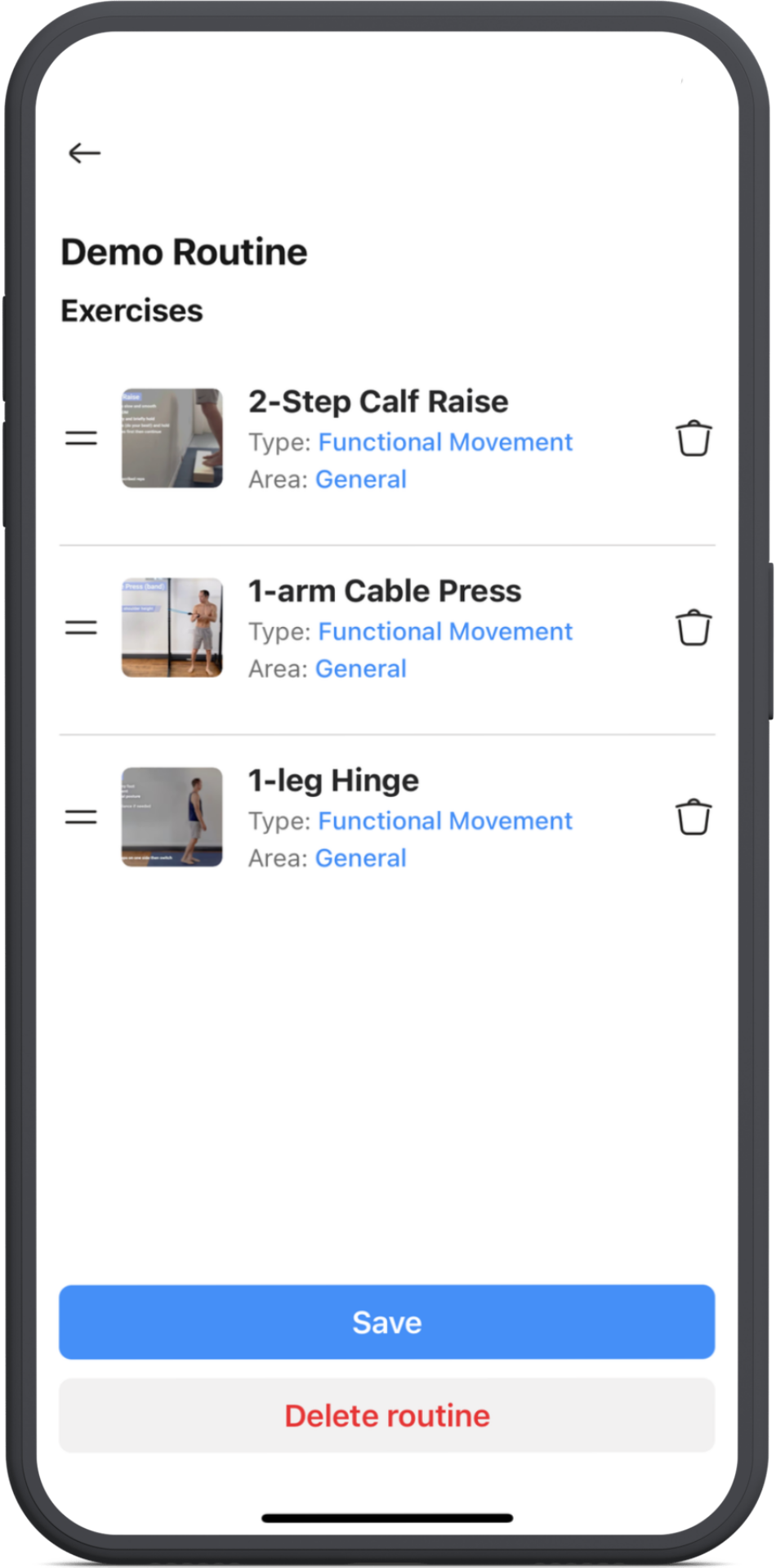
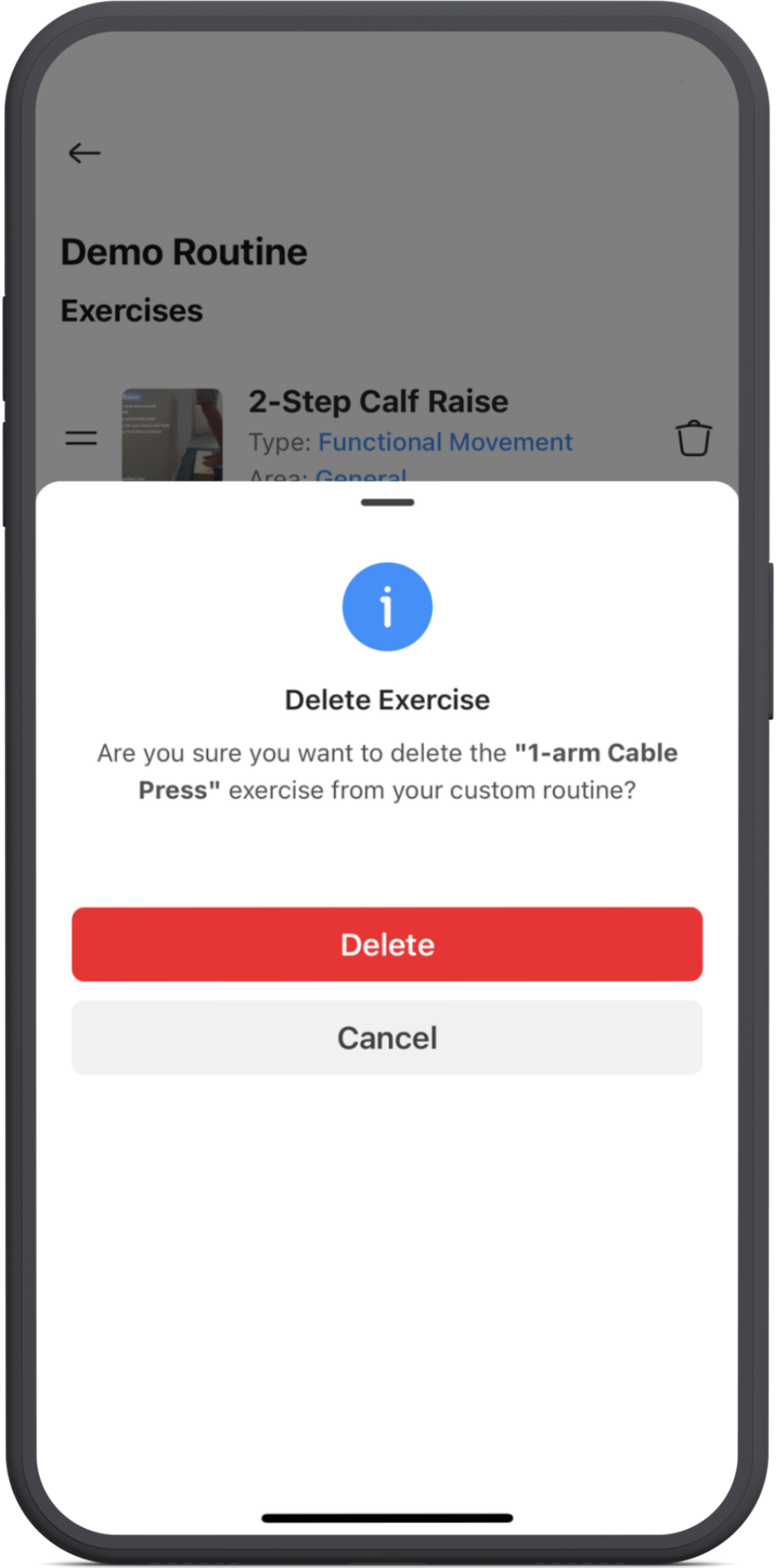
To delete an exercise, simply tap on the bin icon on the right.
Tap on Save when you're finished.
6. Schedule your routine
To schedule your routine in your calendar, tap Add to schedule at the bottom.
7. Turn on Reminders
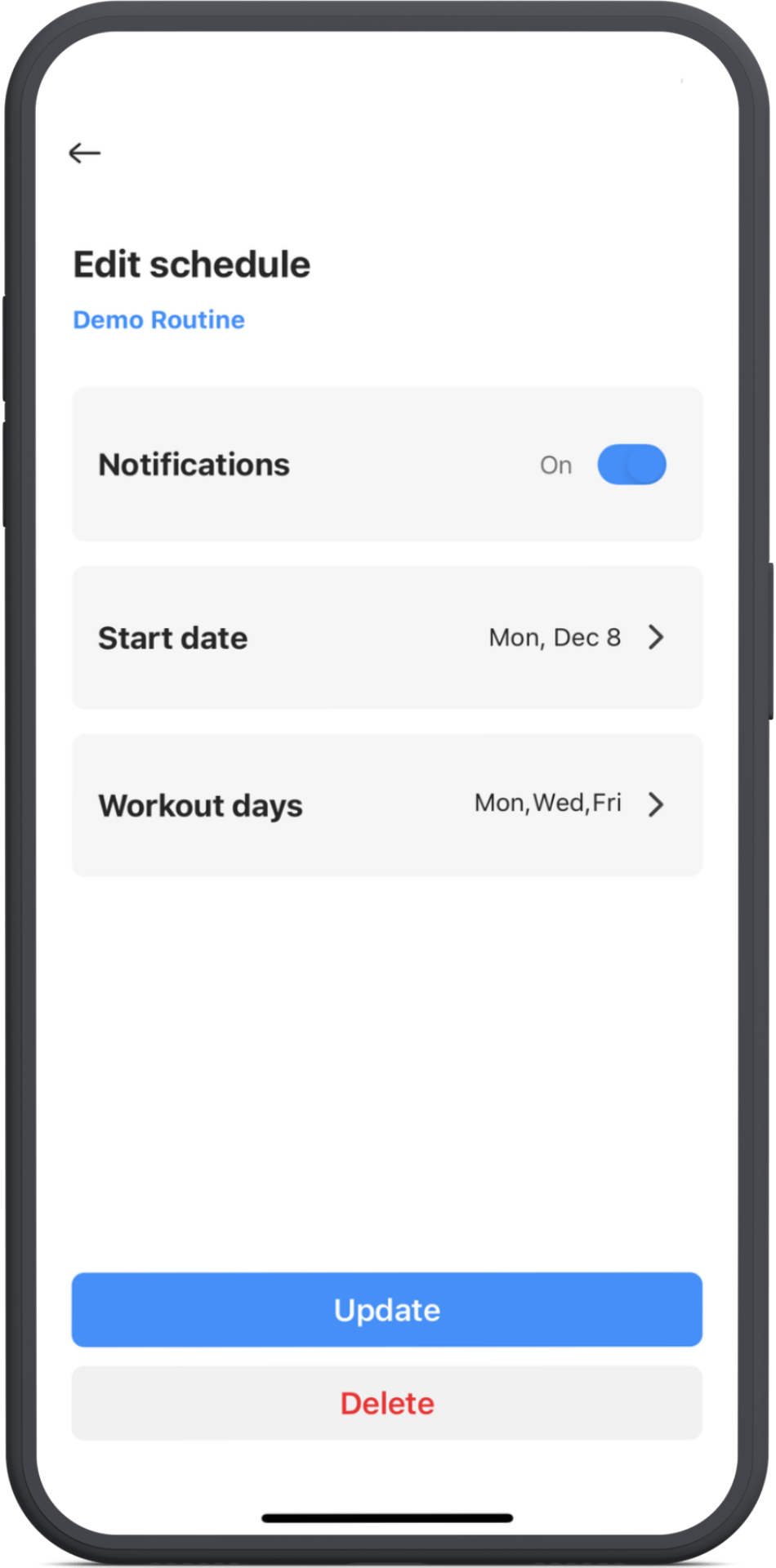
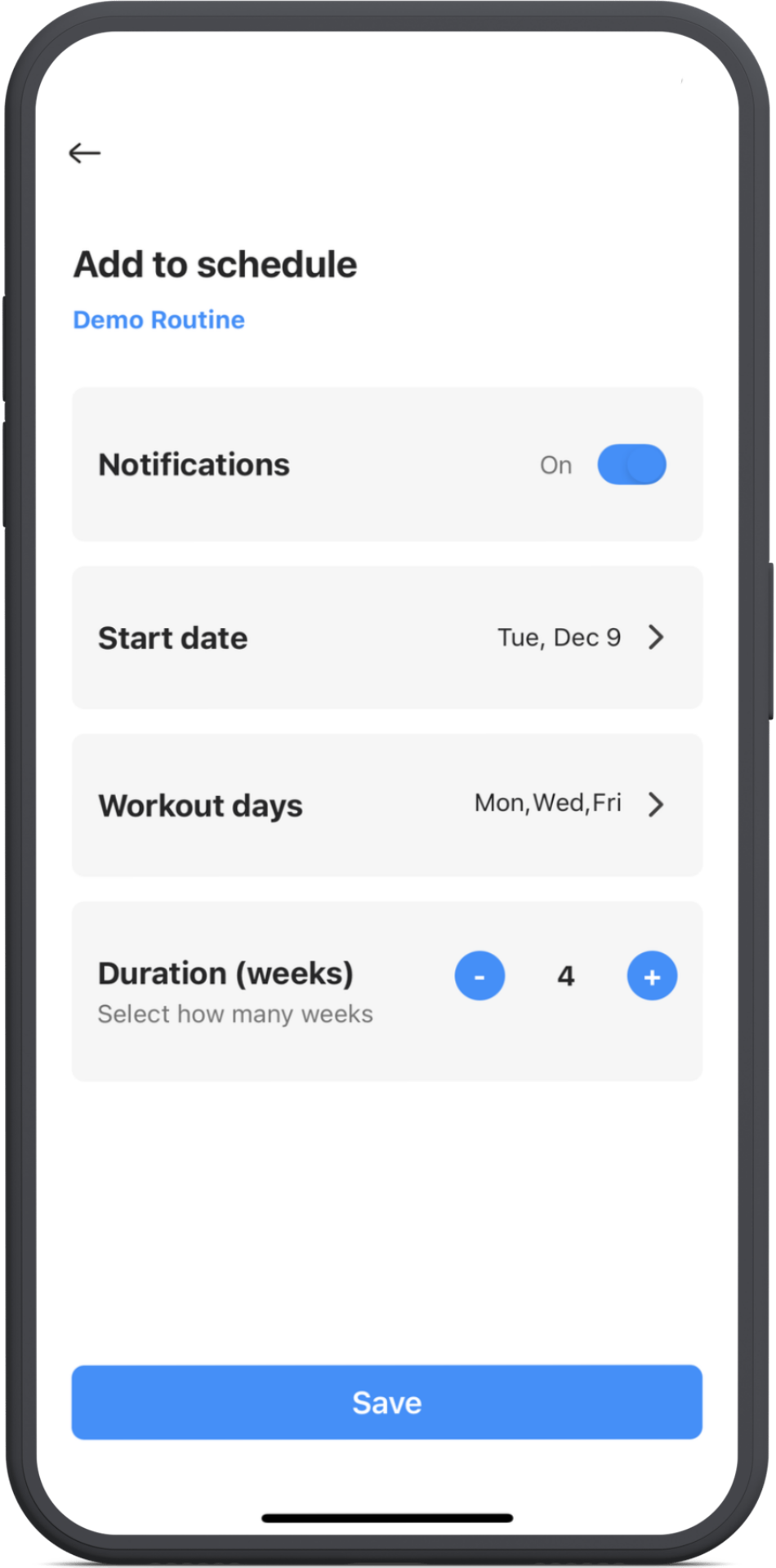
Tap on the notification switch if you like reminders.
Next choose your start date by tapping on the date.
Now select the days of the weeks you want to perform it and pick how many weeks you want it to run and then tap Save.
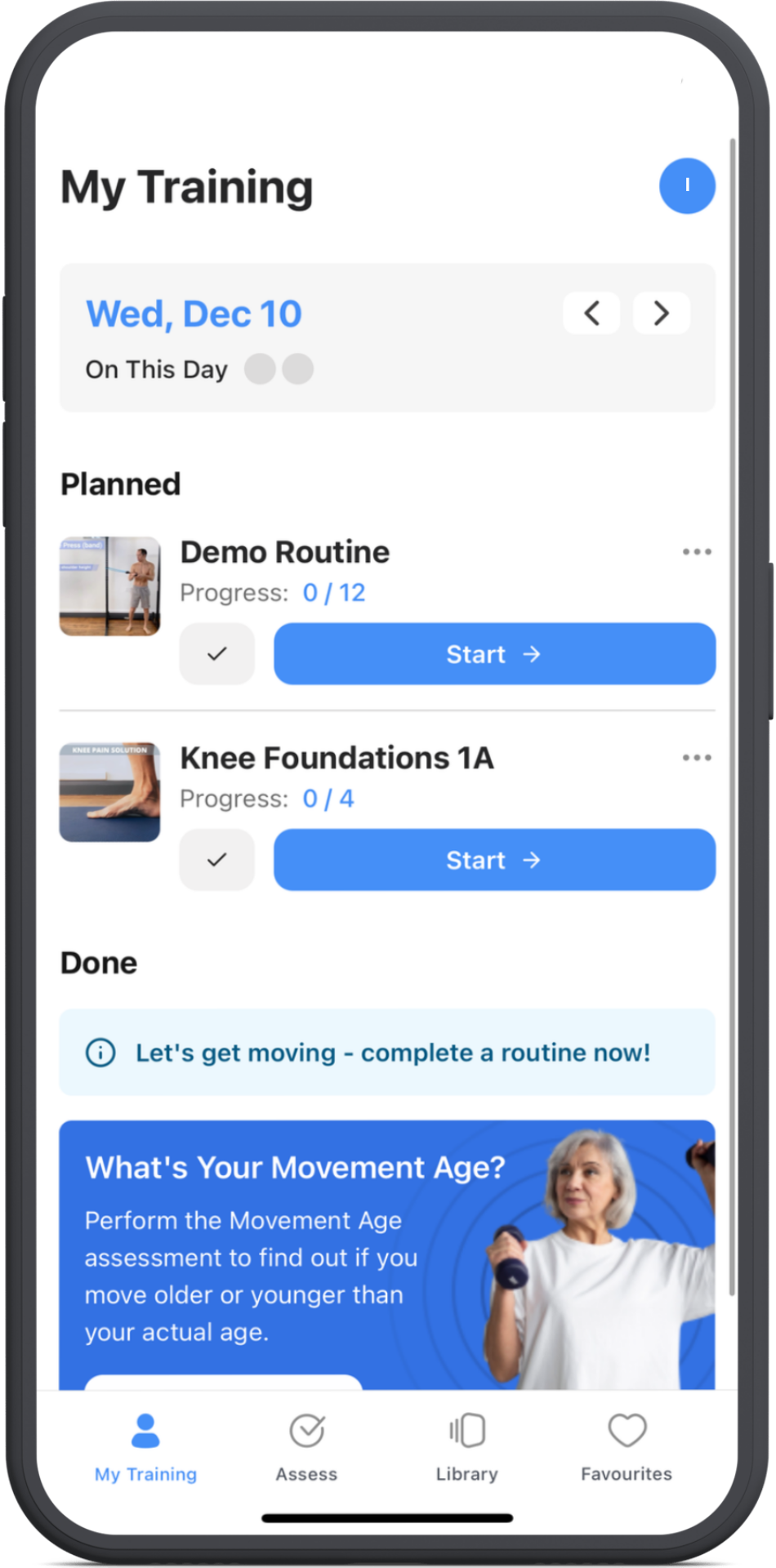
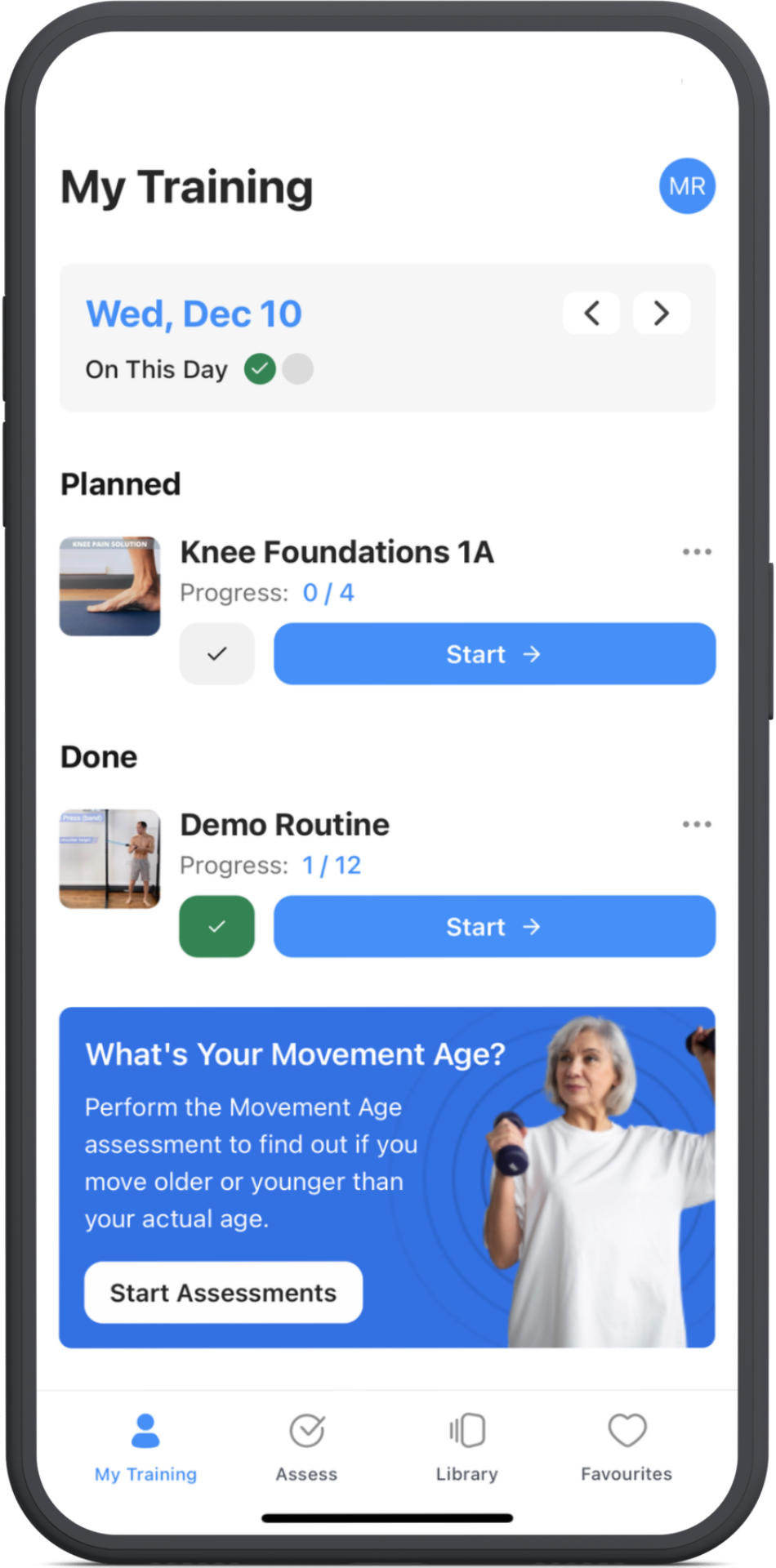
Your routine will now show on your chosen start date and the days you selected.
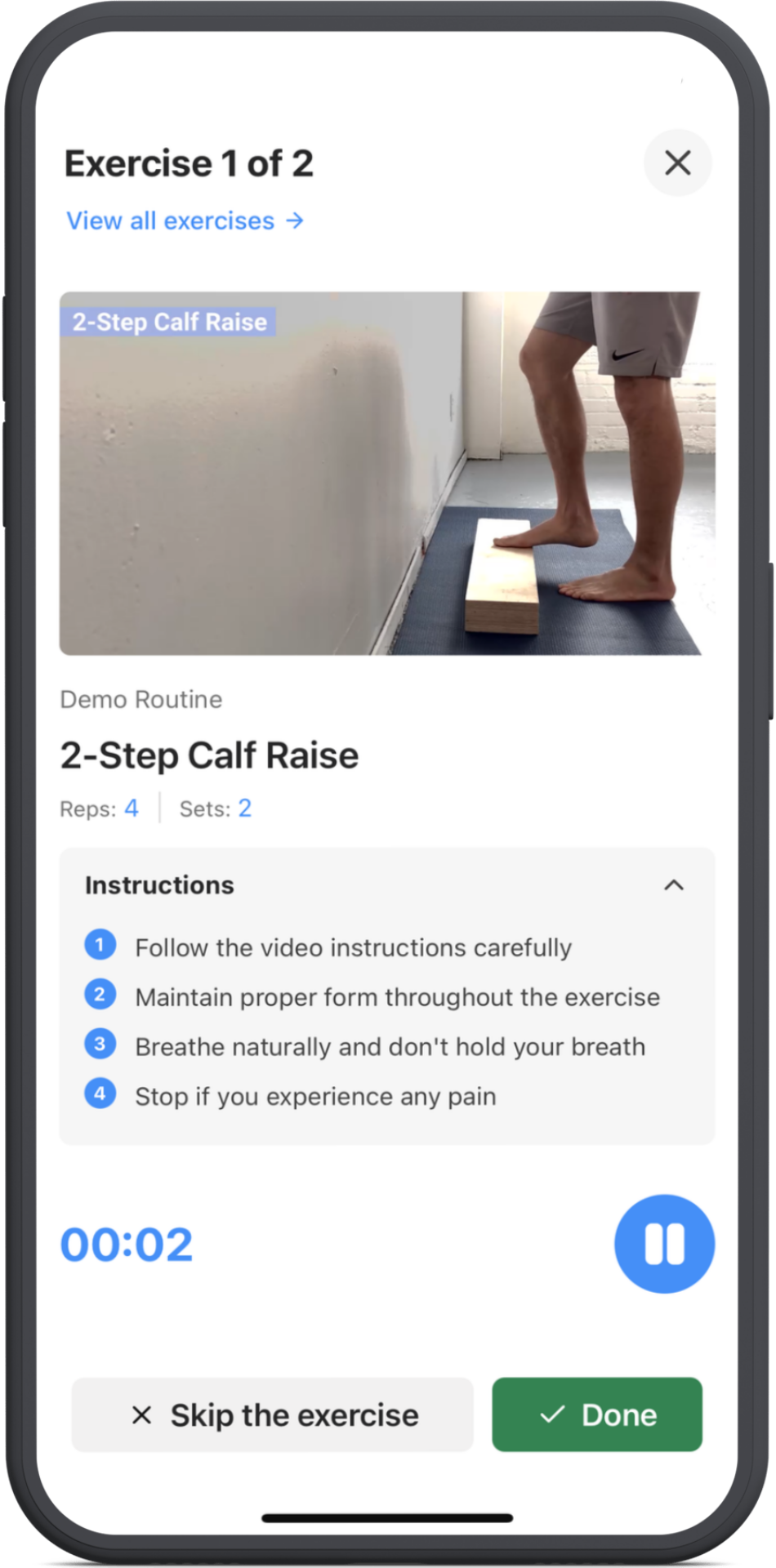
When it shows up in your training area just tap Start and then tap Start Routine and follow each exercise.
Tap Done after complete your routine.
Once all exercises are finishined, your custom routine will be marked as complete.
8. Delete a routine
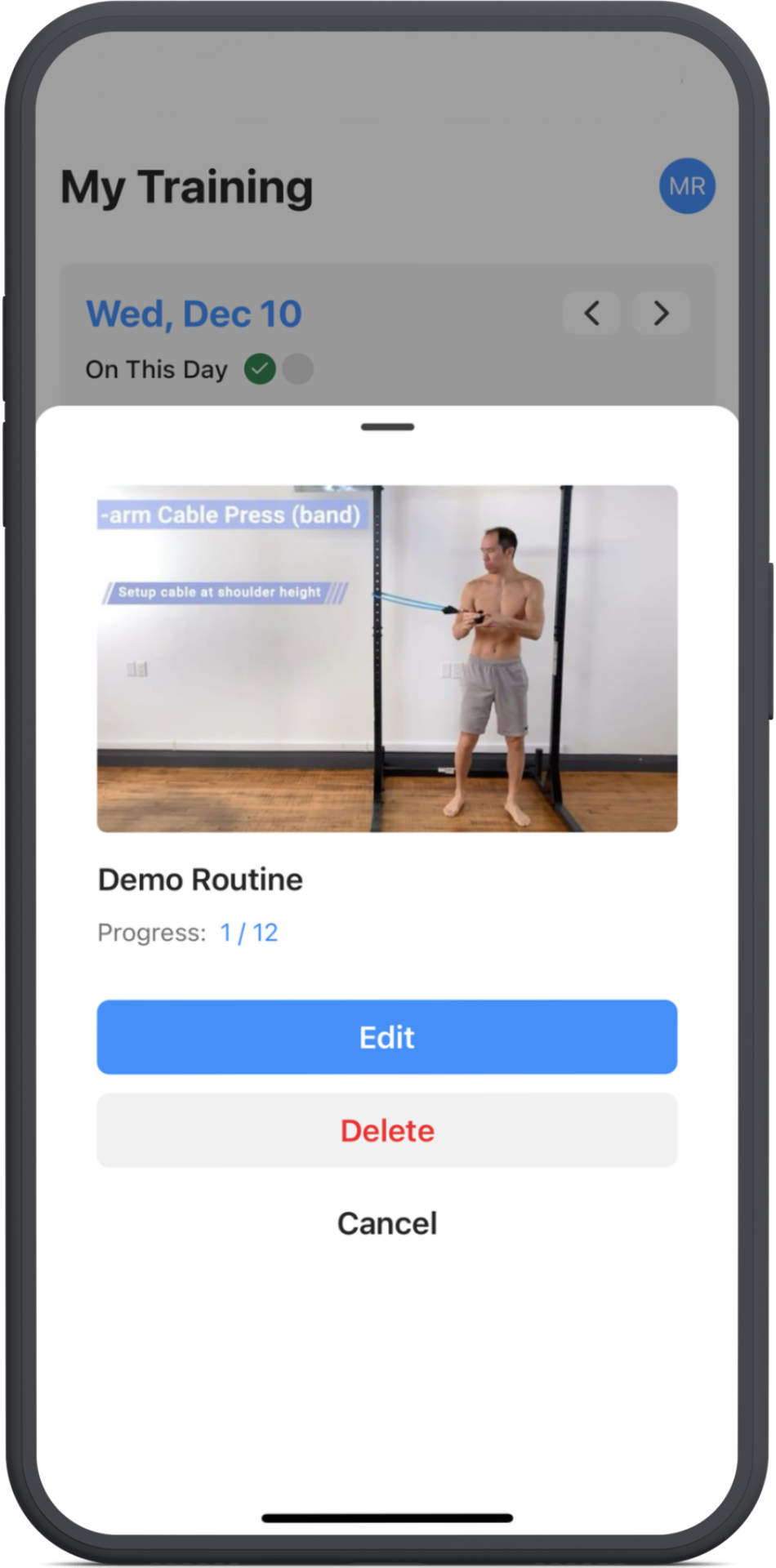
To quickly edit or delete a routine, tap on the three dots, then choose what you'd like to do next.